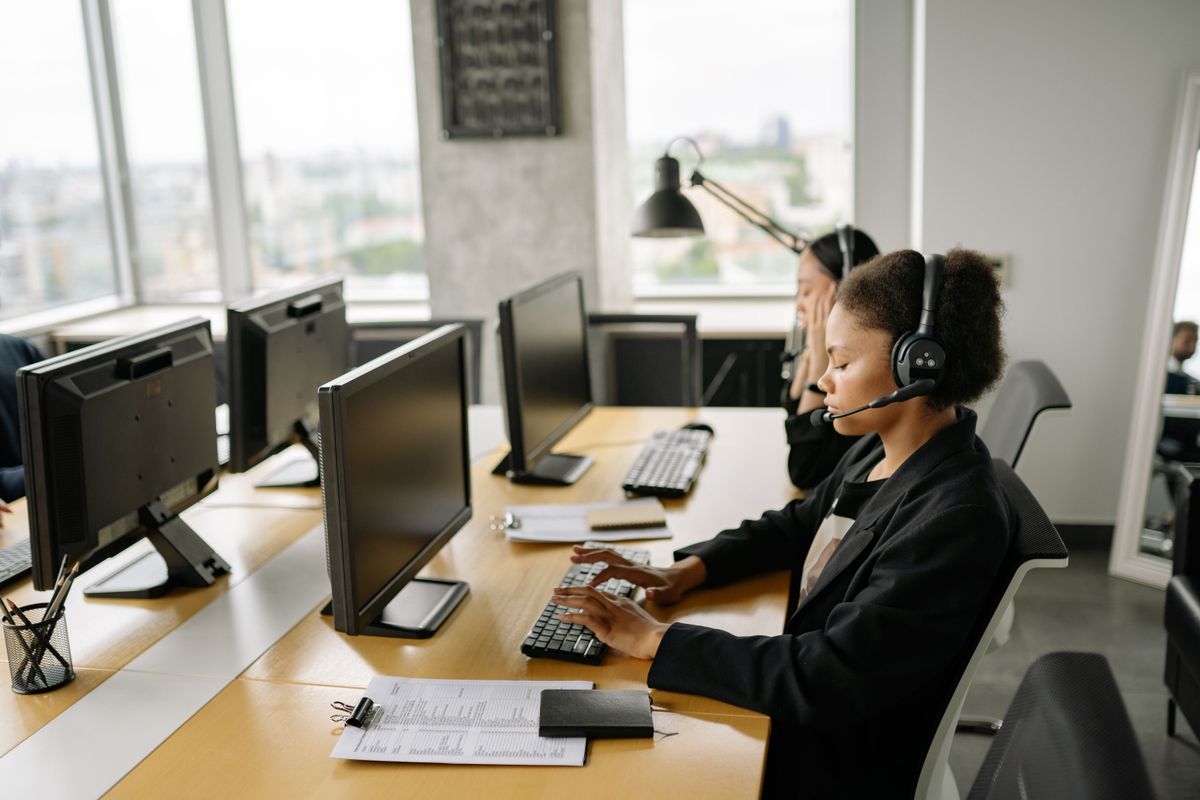


Most work now happens on a computer, so that is where managers look when they need to understand how time is spent, whether data is safe, or why a project keeps slipping. Monitoring software can answer those questions — or create new problems if it is rolled out without a clear purpose, a policy and an honest conversation with the team.
This guide walks through what you can track on company computers, what the law expects in the US, the UK and the EU, and a six-step process for introducing monitoring that employees understand and accept.
What you can monitor on a work computer
Monitoring tools collect very different kinds of data. The more detailed the data, the stronger the reason you need for collecting it.
| What is tracked | What it shows | Typical use | Privacy impact |
|---|---|---|---|
| Work hours, active and idle time | When people start, stop and take breaks | Attendance, timesheets, workload | Low |
| Apps and websites | Which programs and sites are used, and for how long | Productivity trends, software licensing | Medium |
| Screenshots | Snapshots of the screen at intervals | Checking work in progress, resolving disputes | High |
| Live screen view and recording | The screen in real time or as video | Training, support, investigations | High |
| Keystrokes | Everything typed, including private messages | Rarely justified outside security investigations | Very high |
| Files, USB and email (DLP) | Data leaving the company | Protecting confidential information | Medium to high |
Is it legal to monitor employee computers?
In most countries, yes — on company-owned devices, for a legitimate business reason, and with the team informed. The details differ by location.
- Monitoring employees' personal devices or personal accounts without a clear agreement
- Secret monitoring "just in case"
- Collecting more than your stated purpose requires, such as keystrokes for a time-tracking goal
- Keeping recordings indefinitely or giving everyone access to them
This section is a general overview, not legal advice. Rules change, so check the current requirements for your location with a qualified lawyer.
How to monitor employee computers: 6 steps
1. Decide what problem you are solving
"See what people do all day" is not a goal. "Understand why support tickets take longer in the afternoon" or "make sure customer data does not leave on USB drives" is. A clear goal tells you what to track — and what to leave alone.
2. Check the rules where your employees work
Use the overview above as a starting point. Remote employees may be covered by the rules of the place where they work, which can differ from those at your head office.
3. Write a monitoring policy
Keep it short and specific:
4. Tell your team before you start
Share the policy in writing, collect acknowledgments where the law requires them, and explain the reasons in person. People accept monitoring far more readily when they know its limits. See our guide on how to inform employees about monitoring.
5. Start with the least intrusive setup
Begin with hours, active time and app and website categories. Add screenshots or screen recording only for roles or situations where you can explain the need. Run a short pilot with one team and adjust before rolling out company-wide.
6. Use the data to fix processes, not to police people
Look at team trends first: overloaded roles, tools that slow work down, meetings that eat the afternoon. Discuss individual data privately and give employees access to their own reports. Monitoring that leads to better workloads builds trust; monitoring used only to catch people destroys it.
Choosing computer monitoring software
Look for a tool that matches your goal, not the longest feature list. For most small and mid-sized businesses the essentials are:
CleverControl
Our own tool combines time and attendance with a clear view of how company computers are used — apps, websites, active and idle time, screenshots and live screen view — in one web dashboard for office, remote and hybrid teams.
- Productivity tracking and computer activity in one tool
- Website blocking and centralized reports
- Priced per device — handy for shared computers
- No built-in payroll, invoicing or project billing
- Live monitoring and screen recording need the Pro plan
Pricing: Standard from $5.30 per computer per month on a 12-month plan for five computers; 20% off from 30 computers and 30% off from 100. See current prices.
Other options worth knowing
For full side-by-side comparisons, see the best employee monitoring software and our picks for small businesses.
Common mistakes to avoid
The bottom line
Tell employees what is tracked, why and who sees it — in writing.
Collect the least data that answers your question.
Use the results to improve workloads and processes, not to micromanage.
For more on where to draw the line, read about the ethical boundaries of employee monitoring.
Ready to try it? Download CleverControl and run a pilot with one team.