
Employee Time Tracking Software for a Clear Picture
See exactly where project hours go, backed by the activity behind every entry — no guessing, no disputed timesheets.
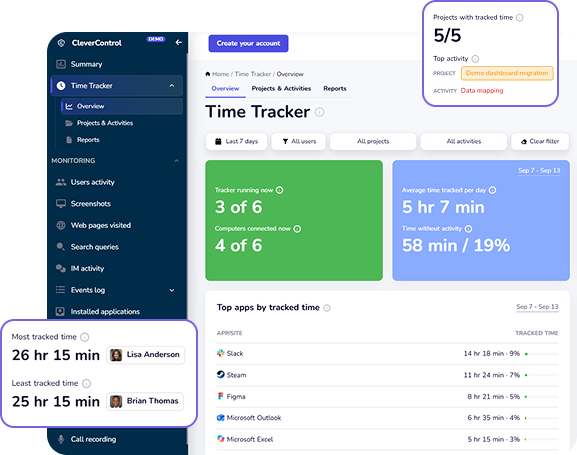
- Projects
Every tracked hour is assigned to a project, keeping reports organized from the start.
- Activities
Each project breaks down into the specific activities employees actually work on.
- Evidence
Each entry carries the apps, sites, and input activity that happened while it ran.
- XLSX & PDF
Reports are ready to order from the single dashboard, on any device.
What Is Time Tracking Software?
Employee time tracking is the practice of recording how long people work and what they work on — normally against projects and activities, so that hours can be totalled by project, by activity or by kind of work rather than just by day.
Most tools stop there: a start, a stop, a label. That is enough for a payroll total and not enough for anything else. When a client questions an invoice, when a project overruns, or when two people report the same eight hours very differently, a start and a stop cannot answer the question.
CleverControl records the same hours and keeps what was on screen while they ran. Every tracked period carries the applications used, the websites visited, and whether the period was idle or active. Timesheets stop being a claim and become something you can check.
How CleverControl Time Tracking Works
Employees get a one-click way to track their day; managers get the picture built from it — who's working, on what, and whether the hours hold up.
What an employee does
- Project selection:
- Pick the project and the specific activity you're working on — it takes one look, not a search through a list.
- Timer control:
- Press Start to begin tracking, Stop the moment you switch to something else. No separate steps, no forms to fill in first.
- Missed time prompt:
- If work starts before the timer does, a single prompt catches it — so the time gets assigned instead of disappearing into the day.

What a manager sees
- Live Status:
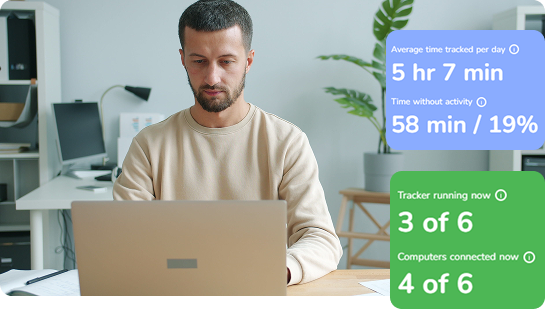
- See who's working right now with a live status card per person, plus a running counter for the whole team.
- Where Time Went:
- Top project and top activity for the period, both clickable to refilter the whole page around them.
- What Backs It Up:
- The applications and websites that appeared most during tracked hours — the evidence behind the number, not just the number.
- What Needs a Look:
- Periods flagged for review sit in one list, where opening a row lets you check the context and correct it on the spot.
Time Tracking Tools Inside CleverControl
- Time tracking with screenshots
Screenshots, applications, and websites captured during tracked periods, assembled into an Evidence report ready to attach to an invoice. Capture runs only while a period is active.
- Time and attendance tracking
Start, stop, and total working time per person per day, answering two different questions: the attendance view asks "was this person at work", the project view asks "on what".
- Idle time tracking
Active time separated from time with little or no input inside every tracked period, alongside a dedicated Low activity report — a prompt to check context, not a verdict on anyone.
- Project time tracking
Projects hold activities, and activities hold the work itself. Totals roll up both ways, with planned hours set against actual, so an overrun shows up while there's still time to act.
- Automatic time tracking
The agent collects application and website activity continuously, so periods nobody labelled can still be reconstructed and assigned afterwards, rather than lost from the record.
- Reports
Reports, ordered directly from the dashboard and delivered as XLSX or PDF — from a single tracked period to a full team summary, whatever the review needs.
Time Tracking Reports, Ordered from the Dashboard
Every report comes from the same tracked data — by person, by project, or by the whole team, the totals match.
| Report | Answers |
|---|---|
| Timesheet | What a person did over the period — by day, with computer, project, activity, assigned time, active time, idle time and activity share. |
| Project | How much time a project really took, who worked on it, which activities consumed it, and which apps and sites back that up. |
| Employee | One person's working day: distribution across projects, timeline, active vs idle, top apps and sites. |
| Activity | The shape of the work itself — support, meetings, development, research — across projects. |
| Low activity | Intervals with a low share of input. A prompt to check context, not a verdict. |
| Weekly summary | Top projects, top employees, low-activity intervals and projects over planned hours. |
Time Tracking by Industry and Role
The mechanics are the same everywhere; what changes is how you structure projects, what you compare planned hours against, and which report the office actually sends out.
- Freelancers
One person, several clients, defensible invoices
- Remote teams
Distributed work, with the record to back it up
- Consultants
Retainer burn and what the retainer actually bought
- Accountants
Client time across the session, not just at the deadline
By Role and by Trade
The same structure covers work we have not written a separate page for yet. Engineers and developers usually track against tickets and repositories, so the remote teams page is the closer fit. Designers, architects and virtual assistants tend to bill against clients, which makes the consultants page the better starting point. Agencies, contractors and manufacturing teams all map onto the same three pieces: a project per client or job, activities for the kind of work, and planned hours where a budget exists.
One case genuinely does not fit. Crews on a construction site or technicians in the field are not covered, because the agent runs on Windows computers rather than phones and there is no GPS clock-in. Office and project work at those companies — estimating, design, project management, back office — is covered; the crew on site is not.
Planned Hours vs What Actually Happened
Set a plan for how many hours a project should take. The totals table shows the plan against the actual, and how far through it you are — 20 hours planned, 16 tracked, 80% complete.
There are no rates and no payroll involved — this is only about whether a project is still inside the time it was scoped for, which is usually the question that gets asked too late. The Weekly summary surfaces projects that have gone over their planned hours, without anyone having to go looking for them.
Three Steps from Setup to Your First Report
Create a project
Name it, describe it, and add the activities that belong inside it. Finished projects archive, so history stays intact and the picker stays short.
Pick it and start
The project appears in the tray menu straight away. The onboarding screen shows who is waiting to start and who is already working.
Reports appear
The dashboard fills in as periods close. Order the first Timesheet or Project report straight from the dashboard.
Free Tools, No Account Needed
- Military time converter
- Time card calculator
- Hours calculator
- Overtime calculator
- Timesheet templates
- Online timer
Frequently Asked Questions
What is employee time tracking?
Recording how long people work and what they work on, usually against projects and activities, so hours can be totalled by project, by activity, or by kind of work — not just by day.
Do employees have to start the timer manually?
Yes — they pick a project and activity, then press Start. If work begins before the timer does, a single prompt offers to start tracking and assign a project, so the time doesn't go unassigned.
What happens to time that has no project assigned?
It's still captured and shows up in its own Unclassified time report, rather than disappearing into the total — so it can be reviewed and assigned instead of lost.
Which operating systems are supported?
The agent runs on Windows desktops. It doesn't cover field crews, drivers, or shop-floor staff whose work isn't on a computer.
What formats can reports be exported in?
XLSX or PDF, ordered directly from the dashboard.
Can a manager correct someone's tracked time?
Yes. Edits are logged automatically — who made the change, when, and which interval — so the record stays accurate rather than just editable.
What to pay attention to before buying a time tracker?
- Don't buy it to police people — minute-level data won't settle "is this person slacking", and trying will just cost trust.
- Don't deploy it quietly — tell people what's collected, why, and what it will and won't be used for, before switching it on.
- Check it runs on how your team actually works — a Windows-only agent won't cover site crews, drivers, or shop-floor staff.
- Frame it around projects, not people — which jobs consumed the hours, not who is or isn't working.
- Check local rules before deploying — monitoring laws vary by state, and GDPR applies if you have EU employees.
Try it, or just watch it work
Start a free trial and track your own hours, or open the live demo and see a team's data already in place — either way, no card required.