
CleverControl AI Integration with MCP
Turn CleverControl data into answers — right in your AI chat.
Connect CleverControl to a compatible AI assistant through MCP and explore authorized workforce analytics using everyday language.
Ask about working time, activity, application usage, daily trends, or changes between periods — and get summaries, comparisons, and tables directly in your AI conversation.
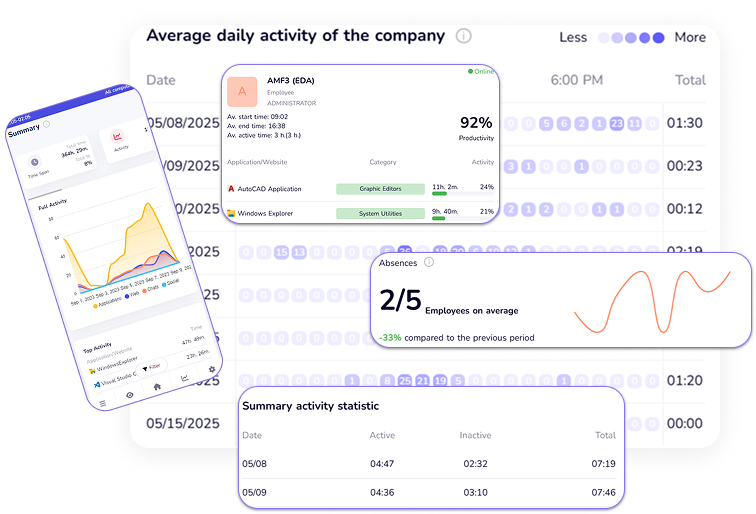
Your CleverControl data. Now you can simply ask.
Instead of opening several reports and comparing numbers manually, ask your AI assistant what you want to know.
You ask:
“Compare the last 7 full days with the previous 7 days. Show the changes in hours and percentages.”
AI can help you:
- Summarize:
- Get a quick overview of activity for a selected period.
- Compare:
- Compare weeks, days, or selected computers and identify changes.
- Explore:
- Review working time, activity, application usage, and daily trends.
- Go deeper:
- Continue the analysis with follow-up questions without starting another report.

From data to answers in seconds
Understand the big picture
Ask: “Use CleverControl and summarize the previous full week for the available computers. Show me a table and three key observations.”
Get a concise overview without manually reviewing multiple reports.
Check working time
Ask: “How much time was recorded for each computer yesterday? Show active time and idle time separately.”
Turn working-time statistics into an easy-to-read answer.
Discover application usage
Ask: “Which five applications were used the longest during the last seven full days? Break it down by computer.”
Quickly understand which applications account for the most recorded time.
Compare periods
Ask: “Compare the last seven full days with the previous seven days for the same computers.”
See changes in hours and percentages and continue exploring them in the same conversation.
Explore activity patterns
Ask: “Show activity by hour for yesterday. During which hours was activity higher?”
Use conversational analysis to understand how recorded computer activity changes throughout the day.
Review daily trends
Ask: “Show daily working-time totals for the last seven full days, grouped by computer.”
Then simply continue:
- “Only show these two computers.”
- “Show Monday through Friday only.”
- “Make it shorter.”
- “Put it into a table.”
No special commands or query syntax required.
One question can lead to the next
Traditional reports answer the question they were designed for. An AI conversation lets you continue exploring your data.
- First:
“Show working time for the previous week.”
- Then:
“Compare it with the week before.”
- Then:
“Which computers changed the most?”
- Then:
“Show only Monday through Friday.”
You don't need to know technical commands. CleverControl also provides ready-made prompts that you can copy directly into your AI assistant.
What is MCP?
Model Context Protocol (MCP) is a standard that allows compatible AI applications to securely connect to permitted tools and data sources.
With CleverControl MCP, an authorized user can allow a compatible AI application to request permitted workforce analytics from their CleverControl account.
Instead of manually transferring information between reports and AI tools, authorized users can explore permitted data directly through a conversation.
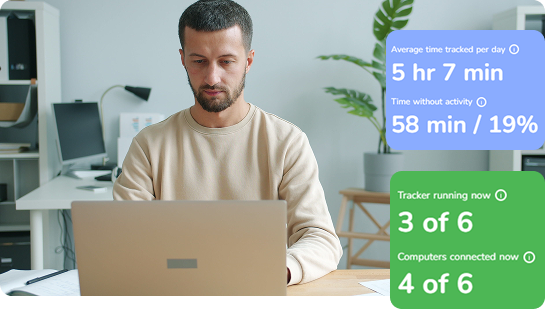
Designed for controlled, transparent access
The connected AI application can access only permitted CleverControl analytics
CleverControl MCP provides authorized, read-only access to workforce analytics available within the CleverControl account and permissions you approve.
Depending on the request and account permissions, the connected AI application can work with:
- available computers
- working-time summaries
- activity data
- application usage
- presence-related information
- aggregated analytics for selected periods
Access remains limited to the authorized CleverControl account and connection.
Read-only means read-only
The connected AI application can analyze permitted CleverControl data, but it cannot:
- change CleverControl settings
- modify recorded data
- edit working time
MCP gives authorized users another way to analyze existing CleverControl workforce analytics.
It does not provide the AI application with administrative control over CleverControl or monitored computers.
You stay in control
AI connections are managed from CleverControl.
The account owner can:
- review active AI connections
- see which applications are connected
- review connection status
- revoke access whenever needed
Once access is revoked, that application can no longer request new CleverControl data through the connection.
If access is needed again later, a new authorization is required.
Transparent third-party AI access
When you authorize a third-party AI application, CleverControl may transmit the permitted data requested through that connection to the selected AI provider.
Processing, retention, and use of that data by the external AI provider are governed by that provider's applicable terms and privacy policies.
We recommend reviewing the AI provider's privacy and data-handling policies before enabling the connection.
AI supports analysis — people make the decisions
CleverControl MCP helps authorized users explore workforce analytics and prepare summaries, comparisons, and reports.
AI-generated responses are provided as analytical assistance only.
They are not designed to make automated employment decisions or automatically evaluate employee performance.
CleverControl activity metrics describe recorded computer activity and should be interpreted in the appropriate business context.
Important findings and employment-related decisions should be reviewed by an authorized person and, where appropriate, verified against the original CleverControl reports.
First and last recorded computer activity should not be treated as a substitute for official attendance records.

Works with the AI tools you already use
Connect CleverControl to AI applications that support remote MCP connections and OAuth authorization. Setup instructions are available for:
- ChatGPT
- Claude
- Cursor
- Codex CLI
 ChatGPT
 Claude
 Cursor
 Codex CLI
You can also use CleverControl's universal MCP instructions with other compatible applications.
Availability may depend on the AI application's version, subscription plan, workspace configuration, and MCP support.
Connect in a few steps
1. Open CleverControl
Go to:
Settings → Integrations → MCP → Connect Client
2. Choose your AI application
Select your AI application and follow the connection instructions.
Add the CleverControl MCP server address to the application when prompted.
3. Review and authorize the connection
Check the AI application and CleverControl account.
Review the connection and explicitly authorize access.
4. Start asking questions
Return to your AI chat, enable the CleverControl connection, and start with:
“Which computers are available to you through CleverControl?”
You're ready to start exploring permitted workforce analytics.
What could you ask CleverControl today?
Try one of these:
- “Give me a summary of the previous full week.”
- “Compare the last seven full days with the previous seven.”
- “Which applications were used the most?”
- “Show active and idle time for yesterday.”
- “Show activity by hour.”
- “Give me daily totals for the last seven days.”
- “Which computers changed the most compared with the previous period?”
And then continue the conversation naturally.

Start with a question. Keep exploring.
- 1Ask
“What happened last week?”
- 2Refine
“Compare it with the previous week.”
- 3Focus
“Only show these three computers.”
- 4Format
“Put the result into a table.”
- 5Continue
“What changed the most?”
Your analysis stays in one conversation.
Your Reports Don't Have to Start with a Dashboard. Start with a Question.
Connect CleverControl to your AI assistant and turn permitted workforce analytics into clear, conversational answers.
Important information
- AI-generated responses depend on the information available through the authorized connection and may contain inaccuracies.
- Important findings should be verified against CleverControl reports and interpreted in the appropriate organizational context.
- CleverControl activity metrics represent recorded computer activity and are not an automatic assessment of employee performance.
- AI-generated analysis is not intended to make automated employment decisions.
- When a third-party AI service is connected, permitted data requested through that connection may be transmitted to the selected provider and subsequently processed according to that provider's applicable terms and privacy policies.
Frequently Asked Questions
What is CleverControl MCP?
CleverControl MCP allows authorized users to connect compatible AI applications to permitted CleverControl workforce analytics.
Can AI change CleverControl data?
No. The MCP connection provides read-only access to permitted analytics.
Which AI applications can I use?
CleverControl provides setup instructions for compatible applications such as ChatGPT, Claude, Cursor, and Codex CLI.
Who can authorize the connection?
Connections are controlled through the CleverControl account and must be explicitly authorized.
Can I revoke AI access?
Yes. Active connections can be reviewed and revoked from CleverControl.