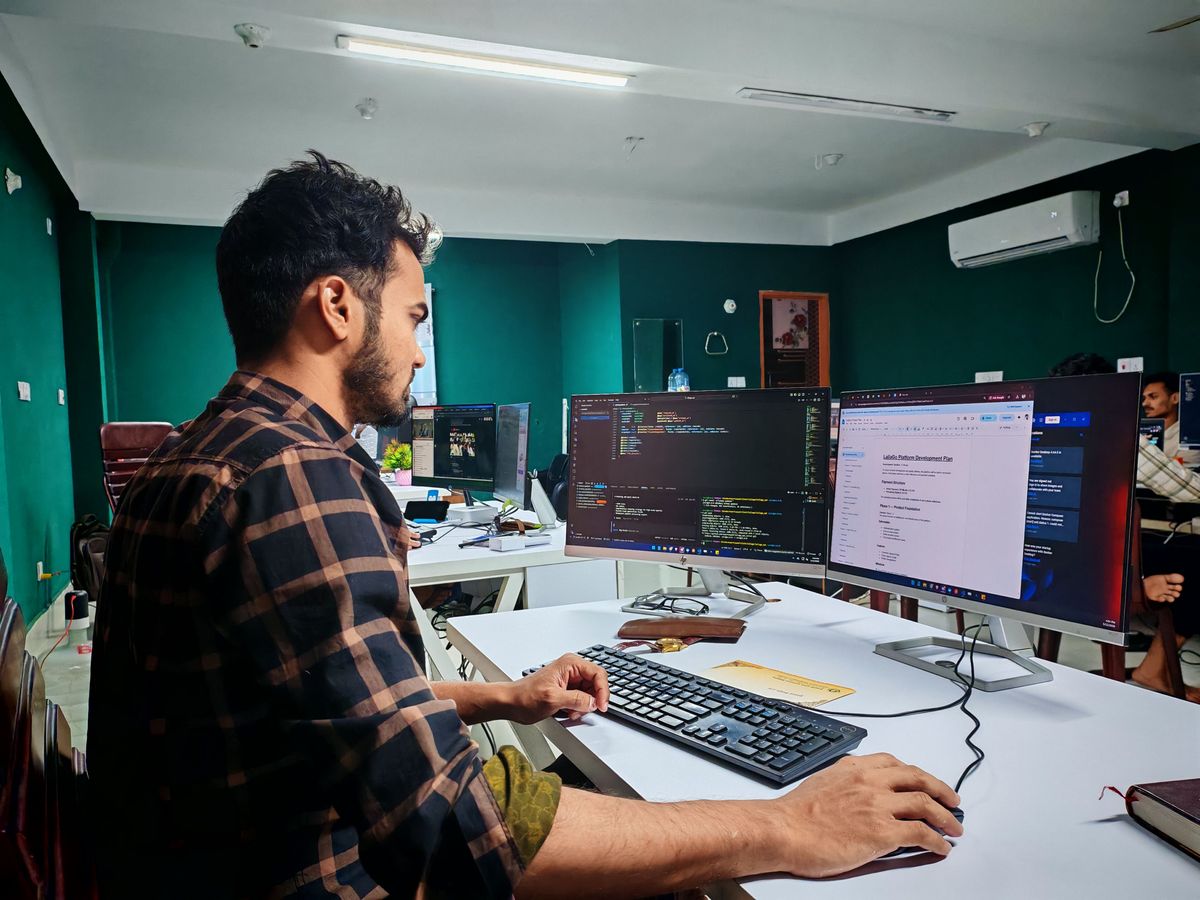


If your monitoring dashboard shows a keyboard or mouse never going quiet, even during a lunch break, you are looking at the classic signature of a mouse jiggler. That signature is easy to spot. What is harder is figuring out why an employee felt the need to fake activity in the first place, and that second question matters more than the first.
A mouse jiggler is a small device or piece of software that moves the cursor or simulates keystrokes at intervals, keeping a computer from showing as idle. Some are physical gadgets that plug into a USB port and nudge the mouse mechanically. Others are scripts or apps that send simulated input signals directly to the operating system. Either way, the goal is the same: make a status light look green when nobody is actually working.
This guide covers both halves of the problem. First, the technical part: how these tools work and what actually shows up when someone uses one. Second, and more important, why detecting a jiggler is the easy 10% of the job, and what the other 90% - fixing the reason someone needed one - actually looks like.
What a Mouse Jiggler Actually Does
A hardware jiggler is a USB peripheral, usually shaped like a small dongle or a stick that sits under a mouse. It registers with the operating system as a Human Interface Device, the same class of device as any keyboard or mouse, and it sends small, repeated movement or click signals on a timer. Software jigglers do the same thing without hardware: a script running in the background moves the cursor a pixel or presses a harmless key at set intervals.
Both versions exist for one reason: to defeat idle-time detection. Chat apps that show "away" status, screen lock timers, and some monitoring tools all watch for a period of no input before flagging inactivity. A jiggler removes that signal without the person doing any actual work.
How to Spot Jiggler Activity: Signals Worth Checking
No single signal proves someone is using a jiggler, but a few patterns are worth a closer look before you draw any conclusion.
- Metronomic timing. Real human mouse movement is irregular - bursts, pauses, corrections. A cursor that shifts by the same small amount at suspiciously even intervals, say every 30 to 60 seconds, looks mechanical rather than human. The tell isn't the movement itself, it's the regularity.
- Movement without outcome. The cursor moves, but no application window changes, no document scrolls, no click lands on anything. Motion with zero downstream effect is the strongest single clue.
- Activity that never dips. Everyone's work has natural gaps - a phone call, a bathroom break, a coffee run. A status that shows continuous activity across an entire eight-hour shift, with no dip at all, is more suspicious than one with normal breaks in it.
- Mismatched channels. Cursor activity is present, but application switching, website activity, or messenger activity from the same window is flat. Real work usually leaves a trail across more than one channel at once.
None of these signals belong in an accusation on their own. They belong in a conversation.
Where Jiggler Detection Runs Into a Wall
Here is the part most guides skip, and it matters because it sets realistic expectations for what technical detection can actually deliver.
Operating systems were not built to detect jigglers. Windows does log when a new device is connected (in Event Viewer, for example), and Group Policy or Microsoft Defender device control can restrict which USB devices may be installed. But that tells you about devices, not whether an input came from a person, and none of it shows up in Task Manager. On macOS, you can check running processes in Activity Monitor and the background items loaded at login in System Settings or with the command-line tool sfltool; at best, that surfaces a software jiggler, never a hardware one. None of the mainstream operating systems ships with a built-in jiggler detector.
Hardware jigglers complicate this further. Because they register as standard HID devices, they can in principle be identified by their vendor and product identifiers and blocked at the network or endpoint level through security group policies - but this depends entirely on IT having catalogued which device IDs to block, and a blocklist only stops the specific device IDs someone has already entered, so any device not yet on that list still gets through. Software jigglers are worse: a script that moves a cursor by one pixel looks, at the input level, exactly like a person nudging their mouse. There is no clean technical signature to filter on.
This is the practical ceiling: input-level detection alone will always produce false positives and false negatives, because the operating system cannot distinguish "a machine moved this" from "a person barely touched this" with certainty. Treating a jiggler alert as proof of anything is a mistake regardless of platform.
Why Screenshots Beat Input Logs for This Specific Problem
If cursor and keystroke logs alone can't settle the question, what can? Context. A screenshot taken during a flagged window shows you whether a document was actually open and being worked on, whether an application was frontmost and in use, or whether the screen was sitting on a lock screen or an idle desktop the entire time a jiggler kept the status light green.
This is also the point where simulated-activity detection commonly breaks down for tools that rely on input signals alone: a jiggler can fool an idle timer, but it cannot make a document appear edited or a browser tab appear active if neither is true. Pairing input monitoring with periodic screenshots and application activity logs closes that gap, because the two data sources answer different questions - one shows motion, the other shows content.
With CleverControl, a manager reviewing a flagged period through the secure web account can cross-reference screenshots against the application and website activity logged for that same window. If the cursor moved but the screen shows a blank desktop or an unrelated app sitting untouched for hours, that combination tells you far more than the cursor log alone ever could.
The Real Question: Why Did Someone Reach for a Jiggler?
This is the section that matters most, and it's the one a purely technical response skips entirely. A jiggler is not a cause. It's a response to something - usually a system the employee has decided is unfair, unclear, or impossible to satisfy honestly.
Consider what the presence of a jiggler is actually evidence of:
- A KPI built around presence, not output. If the metric that determines whether someone looks productive is "was the mouse moving," you have built an incentive to fake mouse movement. That is not employee dishonesty in a vacuum - it is a predictable response to a badly designed measure.
- A workload mismatch. Someone whose actual tasks take four hours a day but who is expected to show eight hours of visible activity has been handed an incentive to manufacture the other four. The jiggler is downstream of the workload conversation nobody had.
- Distrust of the monitoring itself. If people believe idle time will be punished regardless of whether the work got done, faking activity becomes the rational move, even for someone who is otherwise doing their job well.
- Genuine malicious intent. It happens too - someone who is simply not working and wants to hide it. This is real, but it is one explanation among several, not the default assumption.
A manager who treats every jiggler alert as proof of the last explanation and skips the first three will fix nothing. Worse, they will teach the rest of the team that the safest response to a flawed KPI is to get better at hiding around it, not to raise the problem.
A Proportional Response: What to Actually Do
Here is a workable sequence once you have a flagged pattern in front of you.
- Confirm the pattern before naming a cause. Pull the screenshots and application activity for the flagged window. Rule out technical false positives - a scheduled task, a stuck script, a legitimate accessibility tool - before assuming intent.
- Check the KPI, not just the employee. Ask whether the role's targets are measured by visible activity, output, or both. If the answer is "mostly activity," that is your root cause candidate, and it applies to the whole team, not one person.
- Have the conversation before the write-up. Open with what you observed, not with a conclusion: "I noticed the activity logs show continuous input during periods where the screen looks idle - can you walk me through what was happening?" This gets you information. Opening with an accusation gets you a defense.
- Separate the two outcomes. If the answer reveals a workload or KPI problem, that's a policy fix: adjust the metric, redistribute the work, or clarify what "productive" actually means for the role. If the answer reveals someone quietly not working and unwilling to say so, that's a performance conversation, handled through your normal disciplinary process and proportionate to what you can actually evidence.
- Fix the incentive, not just the incident. If a jiggler shows up because your system rewards looking busy, one conversation with one employee will not stop the next person from reaching for the same workaround. Revisit what the monitoring is actually measuring.
This is also where transparency does more work than detection. Employees who already know what bossware signs look like, and who understand what a manager can and can't see, are less likely to assume the worst and more likely to raise a workload problem directly instead of quietly working around it. The same logic runs the other way: employees curious about how employees detect monitoring software are usually asking because they don't know what's being measured, and an unclear policy is exactly the gap a jiggler gets built to exploit.
Building a Culture That Doesn't Need Jigglers
The most durable fix isn't a better detection method. It's removing the reason anyone would want one.
- Measure outcomes where you can. Deliverables, response times, completed tasks - anything closer to actual output than to cursor movement.
- Publish the monitoring policy. State clearly what's tracked and why, and make sure the policy is about verifying outcomes and supporting the team, not about catching people out.
- Review the reviewers. Check periodically whether managers are using activity data proportionately, rather than treating every idle period as suspicious. Overreacting to normal gaps teaches people to hide them.
- Normalize breaks. If your policy quietly punishes any dip in activity, you have built the exact incentive a jiggler answers.
A team that trusts the metric doesn't need to fake it. That's a cheaper problem to solve than chasing every new jiggler variant that shows up on the market.
Getting there takes a policy that names what's measured and why, a KPI that tracks real output instead of raw presence, and managers trained to open a flagged pattern with a question instead of a verdict. Put those three things in place and the technical arms race over detection mostly stops mattering.
FAQ
Is using a mouse jiggler illegal?
It depends on your employment contract and your company's monitoring policy rather than on any general law against the device itself. If a policy requires accurate reporting of work status and a jiggler is used to misrepresent it, that's typically a workplace conduct issue handled through your normal disciplinary process, not a legal matter.
Can monitoring software detect a mouse jiggler automatically?
It can flag unusual activity patterns automatically, but a flag is not the same as a confirmed answer. A manager still has to review the underlying screenshots and application use to judge whether the flagged pattern is actually mechanical or just an unusually light day of real work. Treating an alert as automatic proof skips the review step that actually confirms what happened.
What should I say to an employee if I suspect a jiggler?
Open with what you observed rather than a conclusion, for example describing the specific pattern in the logs and asking them to explain it. This gets you an explanation instead of a defensive reaction, and it leaves room for the answer to be a workload problem rather than dishonesty.
Are hardware jigglers easier to block than software ones?
Somewhat. Hardware jigglers register as standard input devices with identifiable vendor and product codes, which IT can in principle block through security policies, but new devices appear faster than blocklists get updated. Software jigglers simulate input at a level that is very hard to distinguish from genuine light mouse use.
How do I know if the real problem is my KPI, not the employee?
If the metric an employee is being measured against rewards visible activity rather than completed work, that's a strong signal the incentive itself needs fixing before you address any individual case. Check whether other people on the same metric show similar patterns; a team-wide pattern points at the system, not the person.
Should I tell employees what monitoring covers before rolling it out?
Yes. Workplace monitoring disclosure is governed by law in many places, and what counts as adequate notice varies by state and by country. Confirm the specific requirements that apply to your business with counsel before you roll out any monitoring policy. Beyond the legal minimum, a clearly stated policy is also what reduces the guesswork that pushes people toward workarounds in the first place.