
CleverControl 사용자 가이드
계정 생성 방법
CleverControl 사용을 시작하려면 다음의 간단한 단계를 따르세요.
- https://dashboard.clevercontrol.com/register에서 계정을 등록하거나 웹사이트 오른쪽 상단의 무료 체험 버튼을 클릭하세요.
- 이름, 전화번호, 회사명, 유효한 이메일 주소를 입력하세요.
- 계정 비밀번호를 만드세요.
- Sign Up 버튼을 클릭하여 등록을 완료하세요.

계정에 컴퓨터를 추가하는 방법
컴퓨터 모니터링을 시작하려면 해당 컴퓨터에 CleverControl 에이전트를 다운로드하고 설치해야 합니다.
- 로그인 버튼을 사용하여 CleverControl 계정에 로그인하세요. 등록 후 대시보드에 첫 번째 컴퓨터를 추가하는 방법이 표시됩니다.
- 필요한 운영 체제용 설치 프로그램을 다운로드하세요. 모니터링하려는 컴퓨터에 직접 다운로드하거나 해당 Windows 또는 macOS 다운로드 링크를 복사하여 설치 담당자에게 보낼 수 있습니다.
- 중요: CleverControl은 모니터링하려는 컴퓨터에만 설치하세요. 관리자 컴퓨터도 모니터링해야 하는 경우가 아니라면 관리자 컴퓨터에는 에이전트를 설치하지 마세요.
- 설치 전에 대상 컴퓨터의 바이러스 백신 소프트웨어를 일시적으로 비활성화하세요.
다운로드한 설치 프로그램의 압축을 풀고 실행한 다음 화면의 안내를 따르세요. 설치 과정은 운영 체제에 따라 약간 다릅니다. 자세한 단계는 해당 가이드를 참조하세요.
- 설치가 완료되면 프로그램이 CleverControl 계정에 자동으로 연결됩니다. 새 컴퓨터가 대시보드에 표시되기까지 5~10분 정도 걸릴 수 있습니다.

나중에 컴퓨터를 더 추가하려면 CleverControl 계정에서 Computers 또는 + Add New Computer 버튼을 사용한 다음 추가하려는 각 컴퓨터에서 위 단계를 반복하세요.
활동 보고서 확인 방법
기록된 모든 활동 데이터는 온라인 계정에서 확인할 수 있습니다. 쉽게 탐색할 수 있도록 정보는 다음과 같은 여러 카테고리로 구성됩니다. Screenshots, Visited Websites 및 기타 항목. 대부분의 카테고리는 Events Log 섹션에서 확인할 수 있습니다.

사용자의 상세 활동을 시간순으로 확인하려면 Events Log Events Log 탭으로 이동하여 All Events 를 선택하세요.
모든 사용자의 활동 개요를 확인하려면 Summary 탭으로 이동하세요. 기본적으로 연결된 모든 컴퓨터의 요약 정보가 표시됩니다.
특정 직원 또는 컴퓨터만 확인하려면 페이지 상단의 All Computers 필터를 사용하세요.
필요에 따라 시간 필터를 사용하여 요약 기간을 조정하세요.

대시보드에서 데이터를 내보내는 방법
CleverControl 대시보드에서 데이터를 내보내는 과정은 간단합니다. 다음 단계를 따르세요.
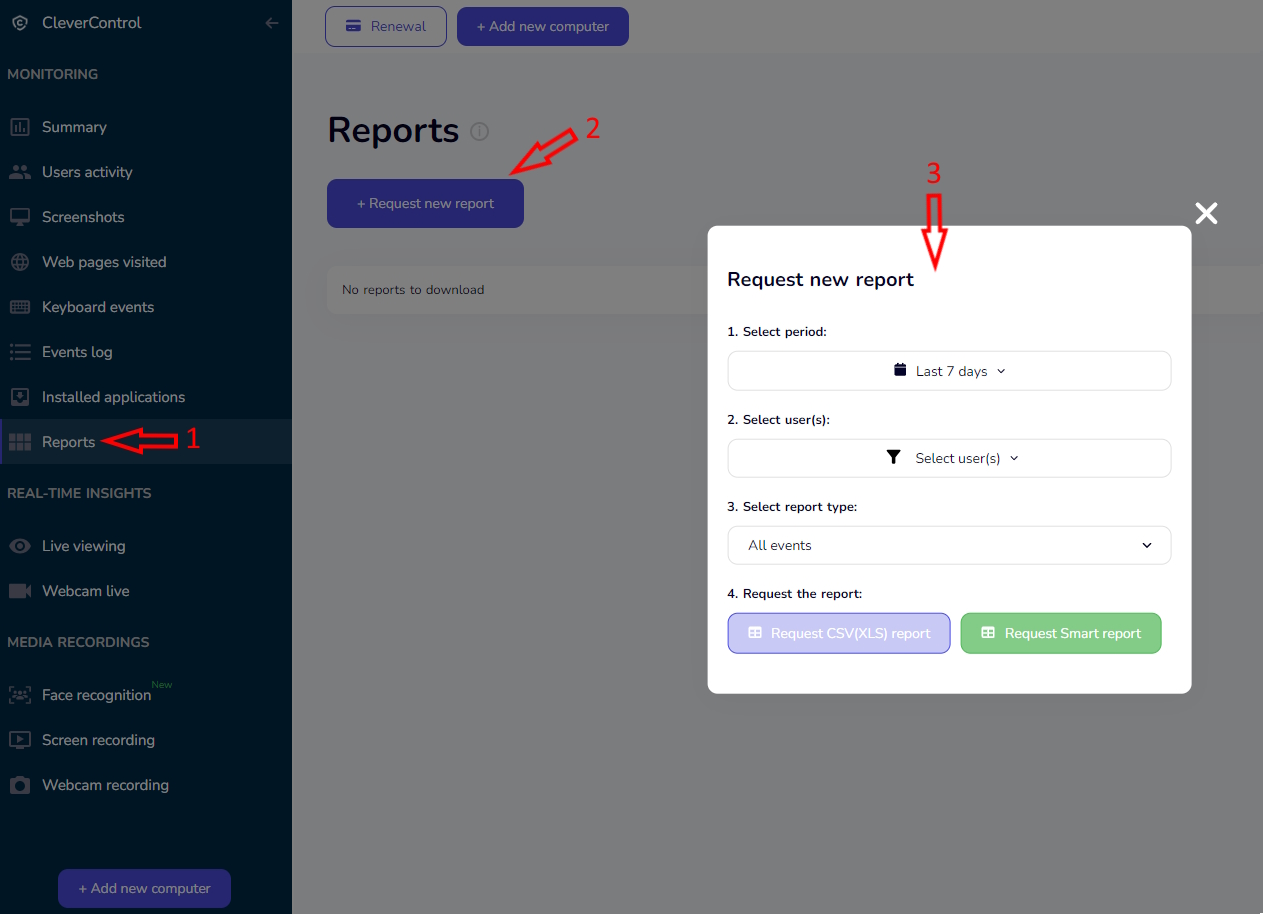
- 대시보드의 Reports 탭으로 이동하세요.
- Request New Report 버튼을 클릭하여 내보내기를 시작하세요. 보고서를 설정하세요. 옵션에서 다음 항목을 선택합니다.
보고서에 포함할 기간.
- 데이터를 포함할 사용자.
- 보고서에 포함할 이벤트 유형(예: 모든 이벤트, 스크린샷, 방문한 웹페이지 등).
- Reports – Request New Report
CSV Report:
- 웹사이트 방문 기록 및 검색어와 같은 텍스트 정보가 포함됩니다. Smart Report:
- 스크린샷과 같은 텍스트 및 미디어 로그가 포함됩니다. Smart 보고서는 .zip 형식으로 다운로드되며 7-Zip과 같은 무료 프로그램을 사용하여 압축을 풀어야 합니다. 다운로드 및 검토:
원하는 형식을 선택한 후 해당 보고서 유형의 버튼을 클릭하세요.
- 보고서는 몇 분 내에 준비됩니다. 생성이 완료되면 같은 페이지에서 다운로드할 수 있습니다.
- CSV 보고서와 Smart 보고서에는 활동 요약이나 사용자 통계 그래프가 포함되지 않습니다.
- 모니터링 설정 변경 방법

CleverControl 설정을 필요에 맞게 조정하고 프로그램이 기록할 활동 유형을 선택할 수 있습니다.
컴퓨터 설정 열기
대시보드 오른쪽 상단에서 이메일 주소를 클릭하세요.
- 드롭다운 메뉴에서 Computers를 선택하세요.
- 연결된 컴퓨터 관리
계정에 연결된 모든 컴퓨터 목록이 표시됩니다. 이 페이지에서 다음 작업을 수행할 수 있습니다.
이름 옆의 연필 아이콘을 클릭하여 컴퓨터 또는 사용자 이름을 수정합니다.
- 전체 컴퓨터 또는 개별 사용자의 모니터링을 시작하거나 중지합니다.
- 화면 녹화, 통화 녹음, 자체 모니터링과 같은 추가 기능을 활성화하거나 비활성화합니다.
- 휴지통 아이콘을 클릭하여 대시보드에서 컴퓨터를 제거합니다. 이 작업은 해당 컴퓨터에서 CleverControl을 제거하지 않습니다.
- 연결된 컴퓨터 설정

더 자세한 설정을 열려면 컴퓨터 이름 아래의 Setup Computer를 클릭하세요.
Setup Computer 버튼

Device Info
이 섹션에는 컴퓨터의 운영 체제 정보와 설치된 CleverControl 에이전트 버전이 표시됩니다.
또한 선택한 유형의 저장된 로그를 삭제하거나 Remote Uninstall을 클릭하여 프로그램을 원격으로 중지할 수 있습니다.
Remote Uninstall은 모니터링 대상 컴퓨터에서 CleverControl 에이전트를 제거하지 않습니다. 모니터링을 중지하고 에이전트가 새 데이터를 보내지 못하게 할 뿐입니다. 프로그램을 완전히 제거하려면 모니터링 대상 컴퓨터에서 직접 제거해야 합니다.
User Activity 설정에서는 사용자가 얼마나 오랫동안 비활성 상태여야 해당 시간이 로그와 통계에서 유휴 시간으로 기록되는지 지정할 수 있습니다. 더 짧은 시간은 유휴 시간으로 계산되지 않습니다.
Device Info 설정

이 섹션에는 사용 가능한 모니터링 설정의 대부분이 포함되어 있습니다.
Clipboard monitoring, Screenshots, Screen recording, Call recording 및 기타 활동 기록 옵션을 활성화하거나 비활성화할 수 있습니다.
컴퓨터에 여러 개의 마이크가 연결되어 있는 경우 CleverControl이 화면 녹화와 통화 녹음에 사용할 마이크도 선택할 수 있습니다.
컴퓨터를 그룹으로 정리하는 방법
여러 연결된 컴퓨터를 그룹으로 정리하면 관리가 더 쉬워집니다. 다음 단계를 따르세요.
그룹 관리 열기:
화면 오른쪽 상단에서 이메일 주소를 클릭하세요.
- 드롭다운 메뉴에서
- Groups. 를 선택하세요.
새 그룹 만들기:
- 새 그룹을 만들려면 Add new group 을 클릭하세요.
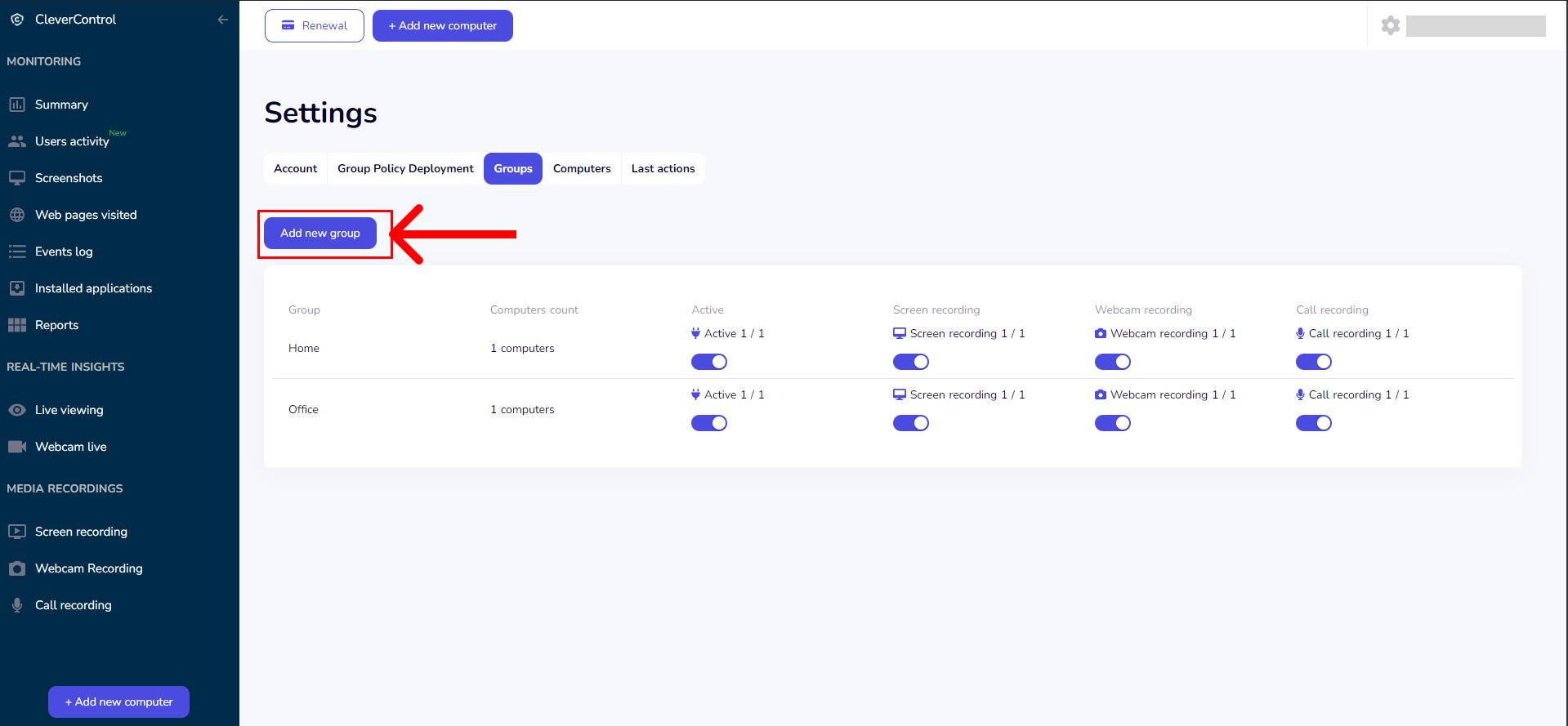
- 그룹 이름을 입력하세요.
- 그룹에 포함할 컴퓨터를 선택하세요.
- 이전에 그룹을 만든 경우 Computers without groups 전환 버튼을 사용하여 아직 어떤 그룹에도 할당되지 않은 컴퓨터를 찾을 수 있습니다.
- 새 그룹을 만들려면 Add new group 을 클릭하세요.

하위 계정 생성 방법
하나의 CleverControl 계정에서 여러 부서 또는 팀을 모니터링하는 경우 부서장, 팀 리더 또는 기타 권한이 있는 직원을 위한 하위 계정을 만들 수 있습니다.
각 하위 계정의 접근 권한을 특정 컴퓨터 그룹으로 제한할 수 있습니다. 이를 통해 관리자는 다른 부서의 데이터에 접근하지 않고 자신이 담당하는 직원의 활동만 확인할 수 있습니다.
이와 같은 접근 제한은 직원 데이터가 업무상 필요한 권한 있는 직원에게만 제공되도록 하여 개인정보 보호와 규정 준수 요구사항을 지원하는 데도 도움이 됩니다.
하위 계정에는 제한된 권한이 있습니다. 하위 계정 사용자는 모니터링 데이터를 확인할 수 있지만 연결된 컴퓨터의 모니터링 설정은 변경할 수 없습니다.
하위 계정을 만들려면:
- 먼저 컴퓨터 그룹을 만들고 팀 또는 부서 관리자가 접근해야 하는 컴퓨터를 추가하세요.
대시보드 상단의 Access Rights 탭을 열고 + Add a subaccount를 클릭하세요.
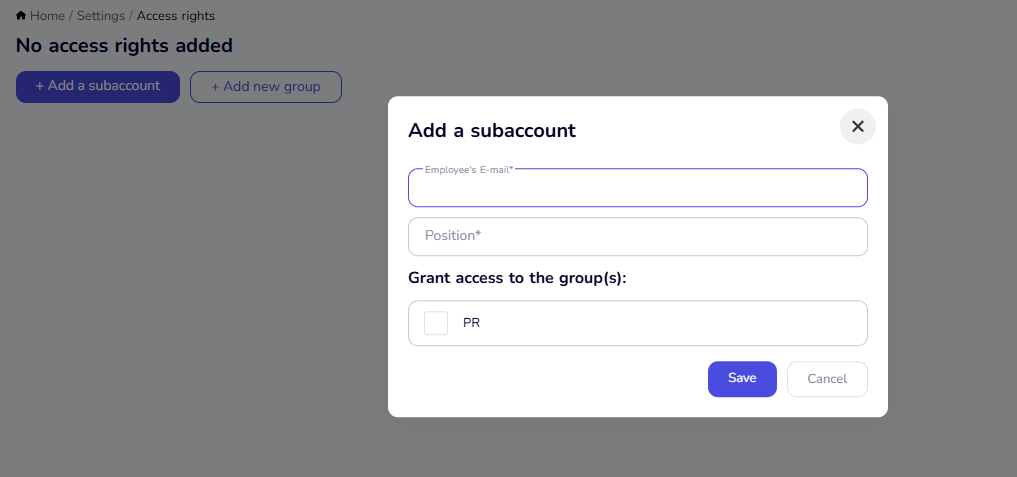
관리자의 이메일 주소와 직책을 입력하세요. 그런 다음 접근 권한을 부여할 컴퓨터 그룹을 선택하고 Save를 클릭하세요.
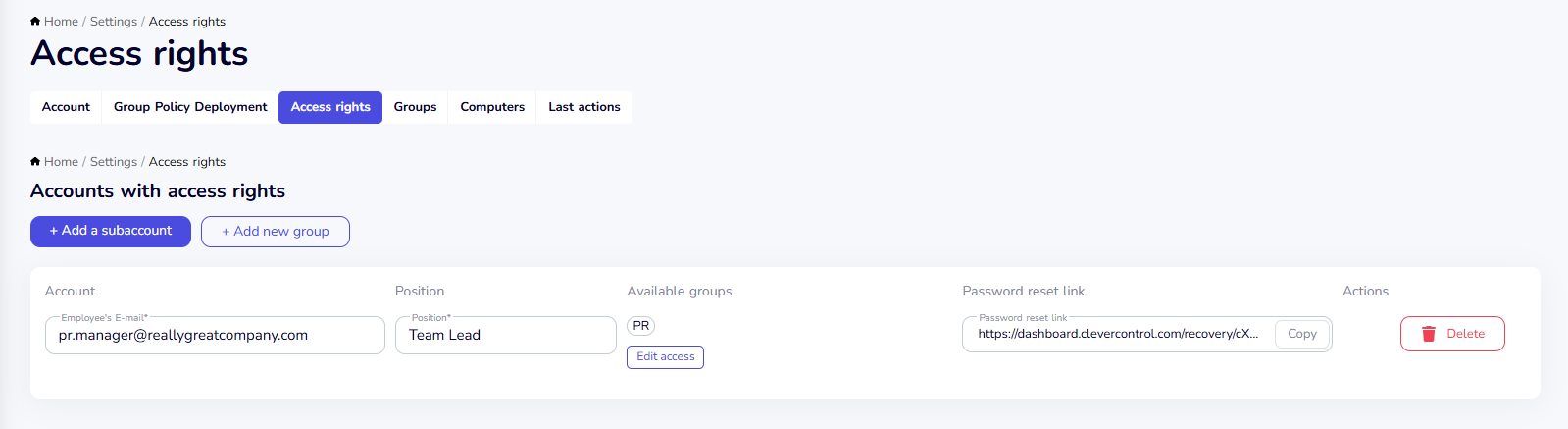
- 하위 계정을 만든 후 비밀번호 재설정 링크를 복사하여 관리자에게 보내세요. 관리자는 이 링크를 사용하여 안전한 비밀번호를 만들고 하위 계정에 로그인할 수 있습니다.
기존 하위 계정은 Access Rights 페이지에서 관리할 수 있습니다. 이 페이지에서 다음 작업을 수행할 수 있습니다.
- 하위 계정의 이메일 주소 또는 직책을 변경합니다.
- 컴퓨터 그룹을 추가하거나 제거합니다.
- 더 이상 필요하지 않은 하위 계정을 삭제합니다.


프로그램 삭제 방법
CleverControl을 제거하려면 모니터링 대상 컴퓨터의 운영 체제에 해당하는 안내를 따르세요.