
Guia de instalação para Windows
Instalação
Siga estes passos para transferir e instalar o CleverControl num computador com Windows.
Transferir o instalador
- Entre na sua conta do CleverControl.
Na página de instruções de instalação, clique em Baixar para Windows.
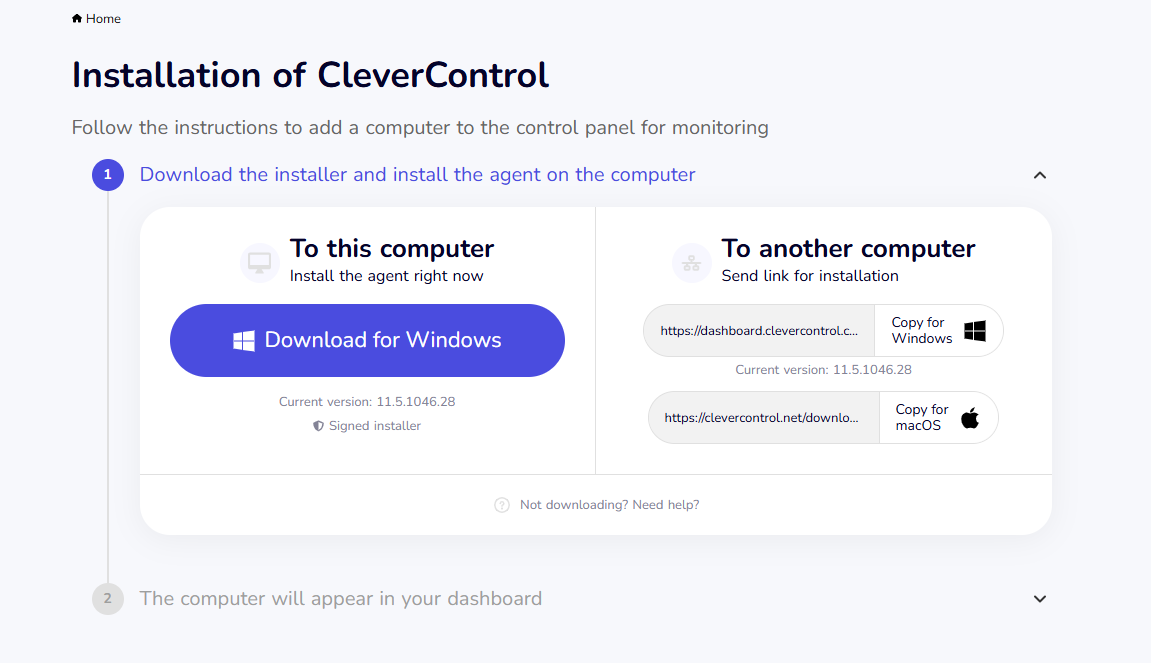
O CleverControl deve ser instalado em cada computador que pretende monitorizar. Não instale o programa no computador do administrador, salvo se esse computador também tiver de ser monitorizado.
- Se necessário, desative temporariamente o software antivírus do computador para evitar que bloqueie a transferência ou a instalação.

Extrair o ficheiro de instalação
Enquanto o instalador estiver a ser transferido, será apresentada uma palavra-passe abaixo do botão Baixar para Windows.
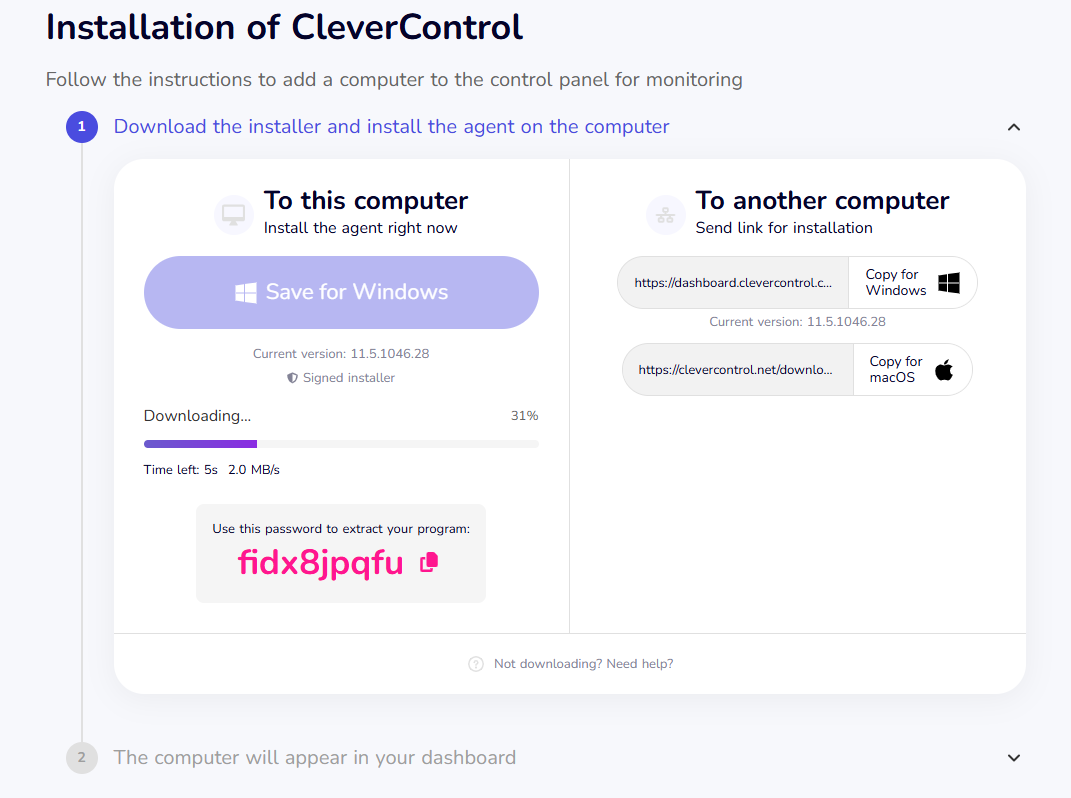
O instalador é transferido como um ficheiro ZIP protegido por palavra-passe. Será necessário utilizar esta palavra-passe para extrair o conteúdo.
Clique no botão de copiar junto à palavra-passe.
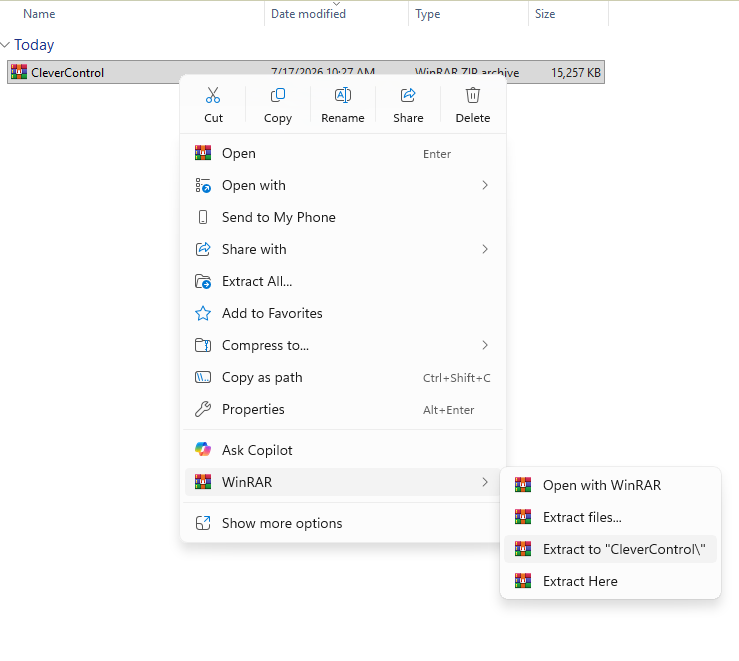
- Localize o ficheiro ZIP transferido. Por predefinição, é normalmente guardado na pasta Transferências.
Extraia o ficheiro com o 7-Zip, WinRAR ou outro programa de compressão.
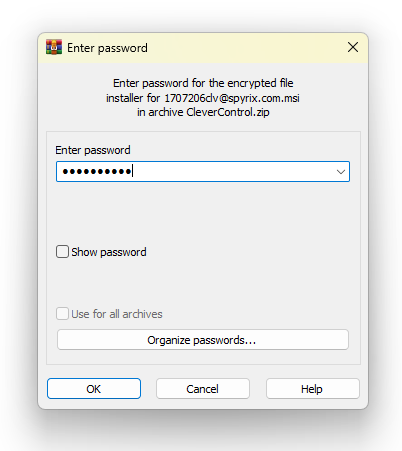
Quando solicitado, cole a palavra-passe copiada do painel do CleverControl.


Instalar o CleverControl
Abra a pasta extraída e execute o ficheiro de instalação.
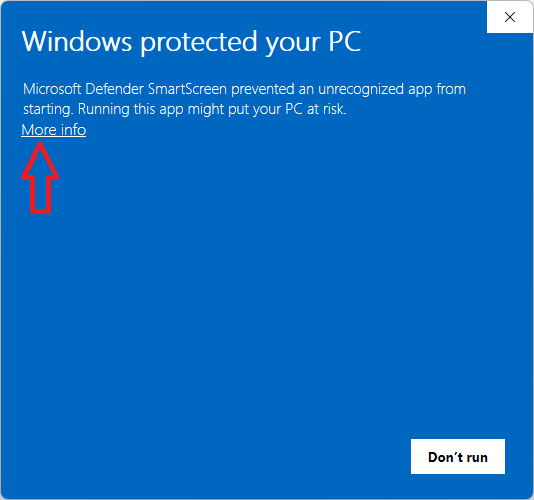
Devido à natureza funcional do programa, poderá ver os avisos abaixo. Clique em Mais informações e, em seguida, em Executar mesmo assim.
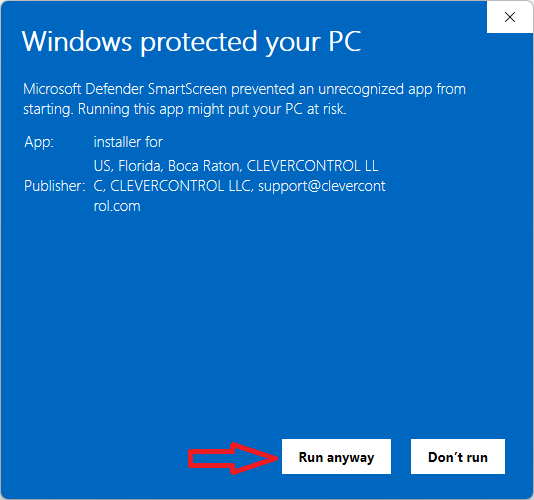
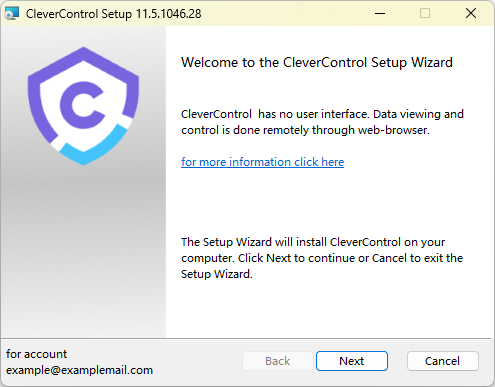
Siga as instruções do assistente de instalação:
Leia e aceite o Contrato de Licença de Utilizador Final e clique em Seguinte.
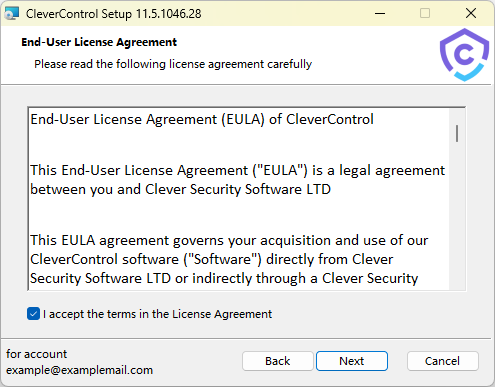
Clique em Instalar para prosseguir com a instalação.
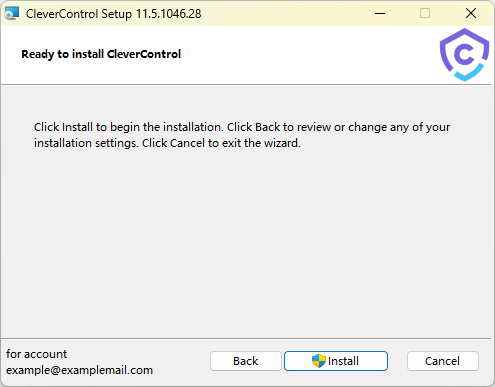
Aguarde a conclusão da instalação.
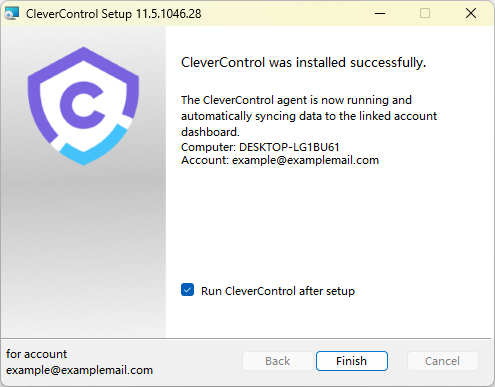
- Quando a instalação terminar, volte à a sua conta do CleverControl.


O computador no qual o programa foi instalado liga-se automaticamente à sua conta. Aguarde alguns minutos até aparecer no painel.
Quando o computador aparecer, poderá alterar o nome apresentado e configurar as definições de monitorização clicando em Configurar computador abaixo do nome.
Exceções do antivírus
Após a instalação, adicione a pasta do programa CleverControl C:\ProgramData\{FO16FA1A-AA91-C56A-654F-E3865DA10DAT}\ à lista de exceções do seu antivírus para evitar que o programa seja bloqueado.
Se o antivírus não permitir adicionar uma pasta inteira, adicione separadamente os ficheiros .exe e .dll do programa.
Para redes de domínio:
- Os administradores de domínio podem implementar o CleverControl num ambiente do Active Directory.
- Para tal, será necessário o pacote de instalação em formato MSI, disponível em Conta > Implantação por Política de Grupo.
Desinstalação
Siga estes passos para desinstalar o CleverControl:
- Localize o mesmo ficheiro de instalação utilizado anteriormente.
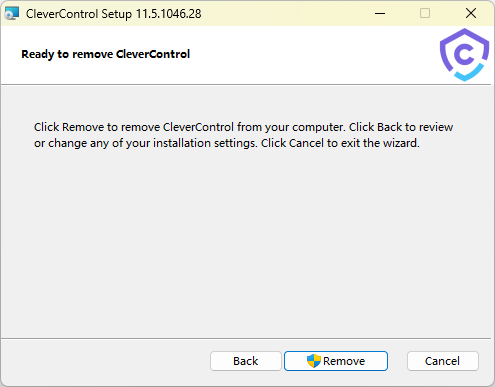
Execute o instalador e selecione Remover no início do processo de instalação.
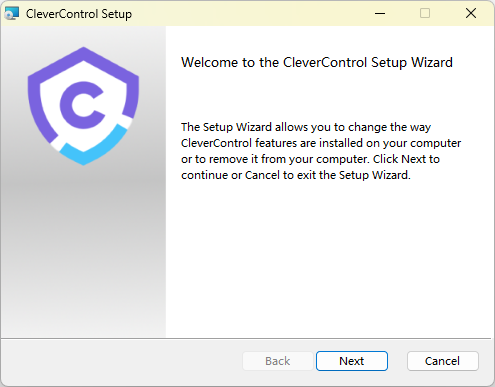
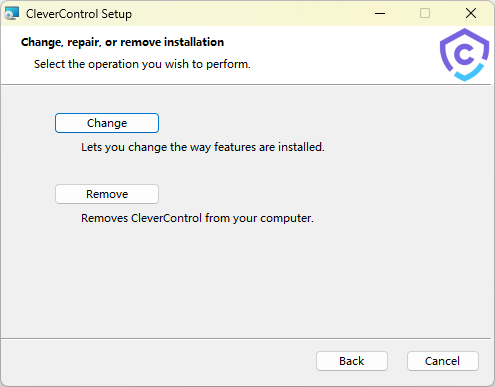
Escolha se pretende manter os dados registados pelo CleverControl neste computador.
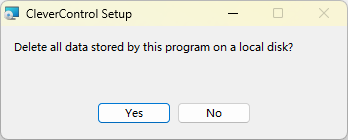
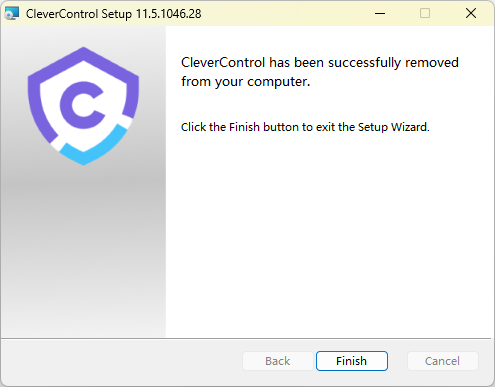
Siga as instruções no ecrã para concluir a desinstalação.


Nota
Se a opção Remover não estiver disponível, prossiga com a instalação. Depois de reinstalar o programa, execute novamente o instalador; a opção Remover deverá então aparecer.
Se já não tiver o ficheiro de instalação original, transfira um novo a partir do painel do CleverControl. Instale primeiro o programa; depois, execute novamente o instalador e desinstale o CleverControl conforme descrito acima.
Desinstalar versões anteriores do CleverControl
Para desinstalar uma versão anterior do CleverControl:
- Abra a seguinte pasta do programa: C:\ProgramData\SecurityMonitor\{0276FACA-AA90-C56A-65FF-D3865DA10EAD}
- Localize e execute o ficheiro unins000.exe.
- Siga as instruções no ecrã para concluir a desinstalação.