
Windows Installation Guide
Installation
Follow these steps to download and install CleverControl on a Windows computer.
Download the installer
- Sign in to your CleverControl account.
On the installation instructions page, click Download for Windows.
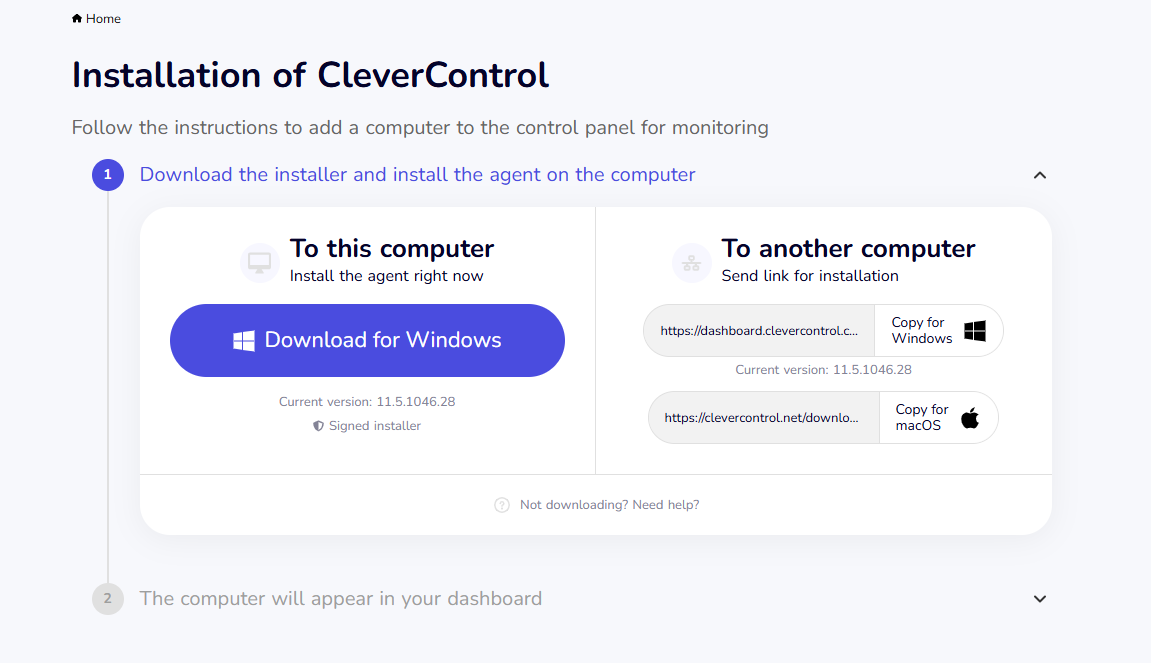
CleverControl must be installed on each computer you want to monitor. Do not install the program on the administrator's computer unless that computer also needs to be monitored.
- Temporarily disable the antivirus software on the computer, if necessary, to prevent it from blocking the download or installation.

Extract the installation file
While the installer is downloading, a password will appear below the Download for Windows button.
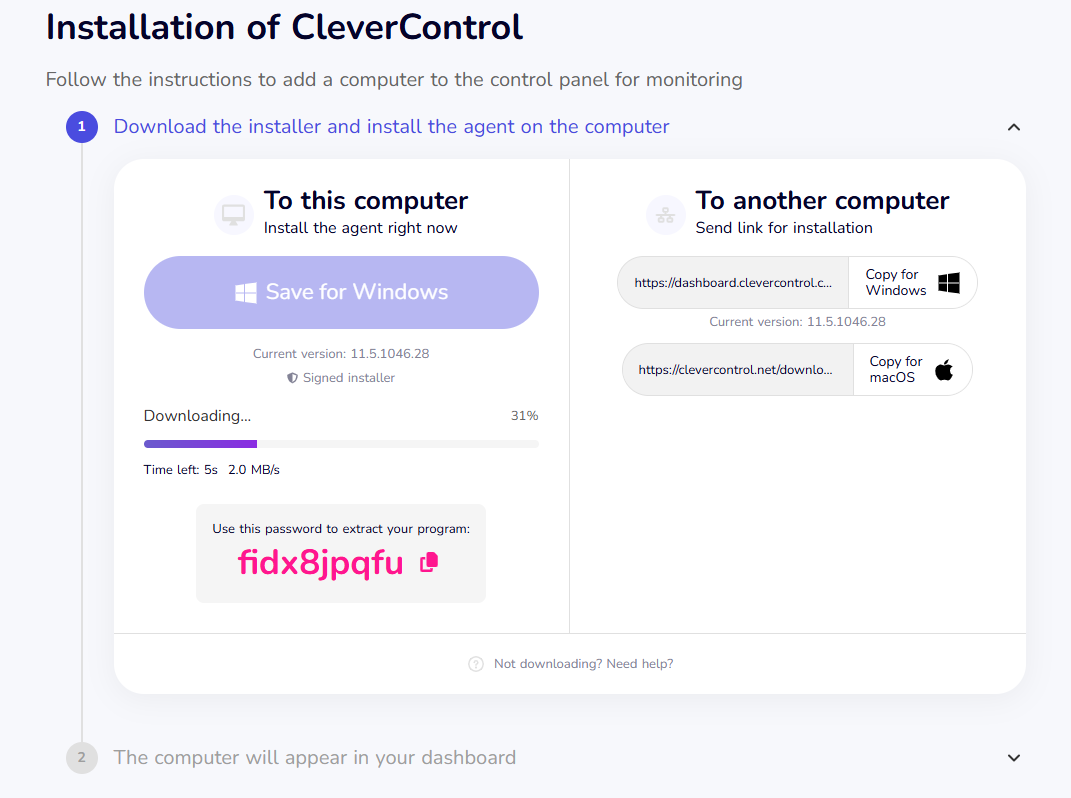
The installer is downloaded as a password-protected ZIP archive. You will need this password to extract its contents.
Click the copy button next to the password.
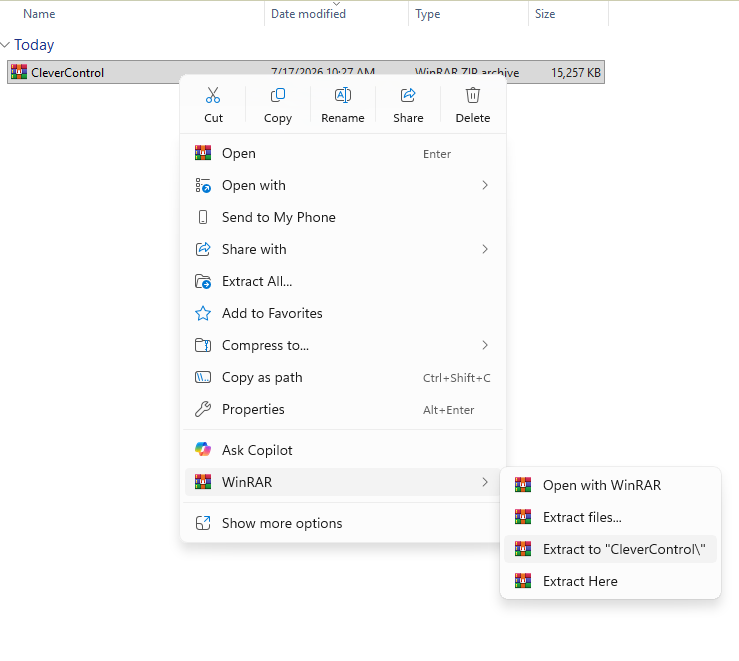
- Locate the downloaded ZIP archive. By default, it is usually saved in the Downloads folder.
Use 7-Zip, WinRAR, or another archive utility to extract the files.
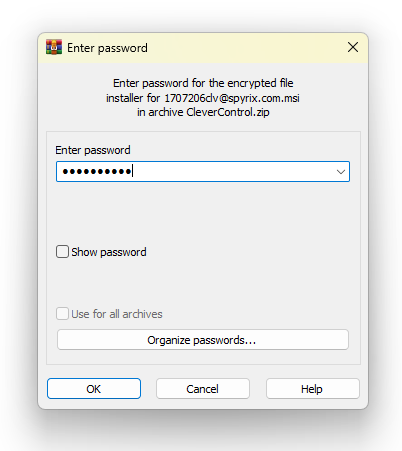
When prompted, paste the password you copied from the CleverControl dashboard.


Install CleverControl
Open the extracted folder and run the installation file.
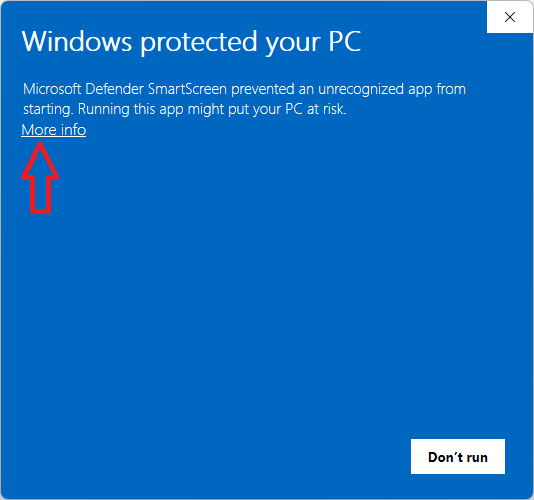
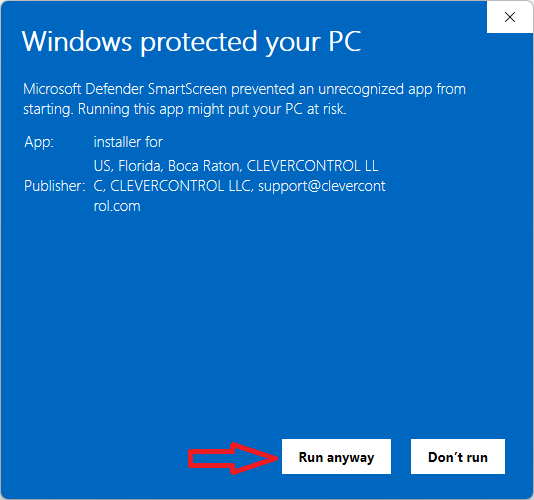
Due to the nature of the program, you may see the following message. Click More Info and then Run Anyway.
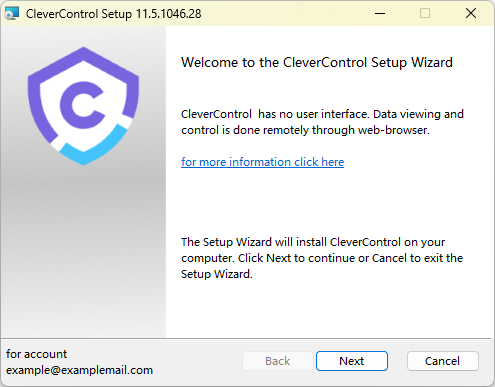
Follow the instructions in the installation wizard:
Read and accept the End-User License Agreement. Click Next.
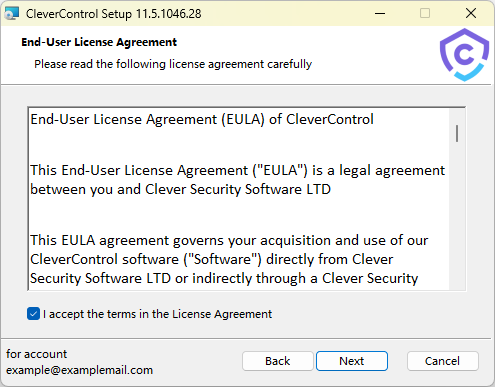
Click Install to proceed through the installation steps.
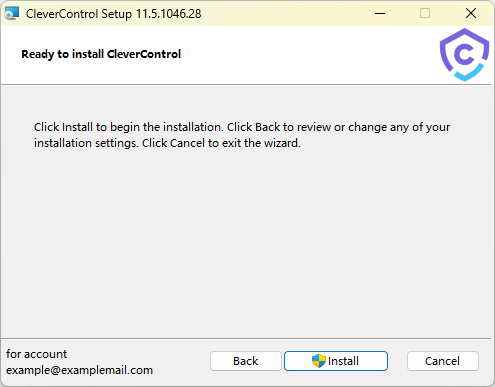
Wait for the installation to finish.
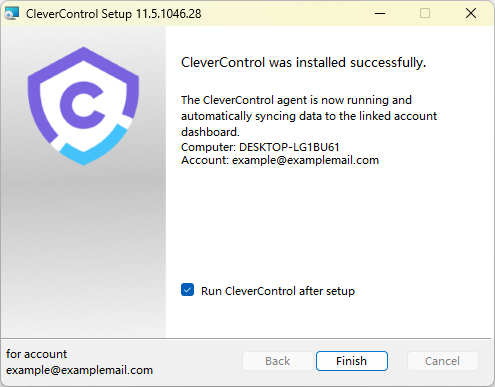
- Once the installation is complete, return to your CleverControl account.


The installed computer will connect to your account automatically. Allow a few minutes for it to appear in the monitoring dashboard.
Once the computer appears, you can change its displayed name and configure its monitoring settings by clicking Setup Computer below the computer name.
Antivirus exceptions
After installation, add the CleverControl program folder C:\ProgramData\{FO16FA1A-AA91-C56A-654F-E3865DA10DAT}\ to your antivirus exceptions to prevent the program from being blocked.
If your antivirus does not allow you to add an entire folder, add the program's .exe and .dll files individually.
For Domain Networks:
- Domain administrators can deploy CleverControl in an Active Directory environment.
- To do this, you'll need the installation package in MSI format, available in the "Account > Group Policy Deployment" section.
Uninstallation
To uninstall CleverControl, follow these steps:
- Locate the same installer file you used to install the program.
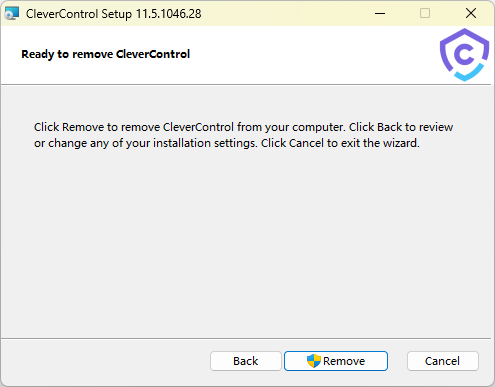
Run the installer and select Remove at the beginning of the setup process.
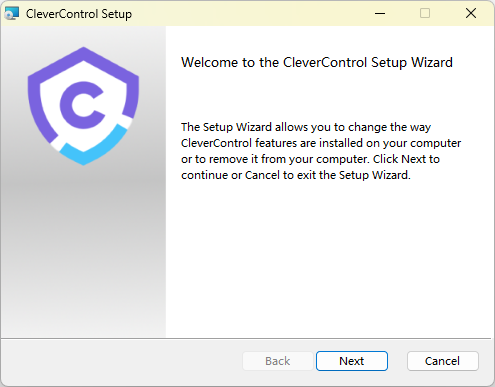
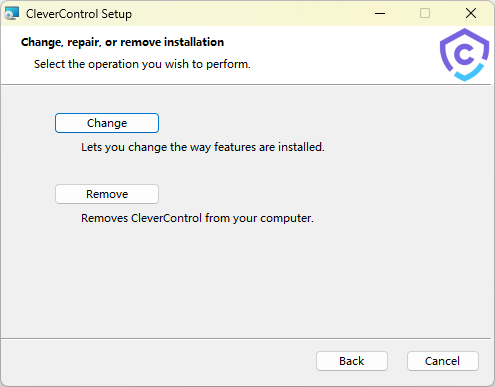
Choose whether you want to keep the data collected by CleverControl on this computer.
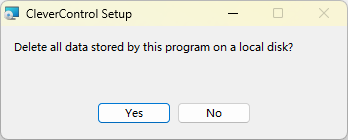
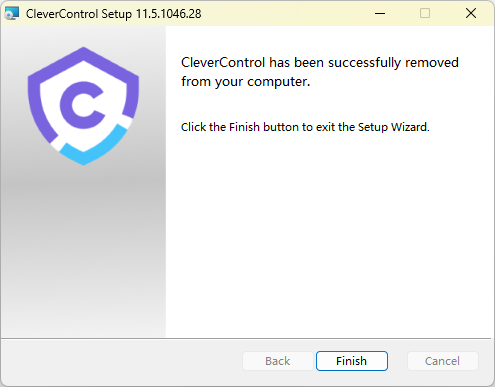
Follow the on-screen instructions to complete the uninstallation.


Note
If the Remove option is not available, continue with the installation process. Once the program has been reinstalled, run the installer again. The Remove option should then appear.
If you no longer have the original installer file, download a new one from your CleverControl dashboard. Install the program first, then run the installer again and uninstall CleverControl as described above.
Uninstalling older versions of CleverControl
To uninstall an older version of CleverControl:
- Open the following program folder: C:\ProgramData\SecurityMonitor\{0276FACA-AA90-C56A-65FF-D3865DA10EAD}
- Locate and run the unins000.exe file.
- Follow the on-screen instructions to complete the uninstallation.