
Hướng dẫn sử dụng CleverControl
Cách tạo tài khoản
Để bắt đầu sử dụng CleverControl, hãy làm theo các bước đơn giản sau:
- Đăng ký tài khoản tại https://dashboard.clevercontrol.com/register hoặc nhấp vào nút Dùng thử miễn phí ở góc trên bên phải của trang web.
- Cung cấp tên, số điện thoại, tên công ty và địa chỉ email hợp lệ của bạn.
- Tạo mật khẩu cho tài khoản.
- Nhấp vào nút Sign Up để hoàn tất đăng ký.

Cách thêm máy tính vào tài khoản
Để bắt đầu giám sát một máy tính, bạn cần tải xuống và cài đặt tác nhân CleverControl trên máy tính đó.
- Đăng nhập vào tài khoản CleverControl bằng nút Đăng nhập. Sau khi đăng ký, bảng điều khiển sẽ hiển thị hướng dẫn để thêm máy tính đầu tiên.
- Tải xuống trình cài đặt dành cho hệ điều hành cần thiết. Bạn có thể tải trực tiếp xuống máy tính muốn giám sát hoặc sao chép liên kết tải xuống phù hợp cho Windows hay macOS và gửi cho người phụ trách cài đặt.
- Quan trọng: Chỉ cài đặt CleverControl trên những máy tính bạn muốn giám sát. Không cài đặt tác nhân trên máy tính của quản trị viên trừ khi máy tính đó cũng cần được giám sát.
- Trước khi cài đặt, hãy tạm thời tắt phần mềm diệt vi-rút trên máy tính đích.
Giải nén và chạy trình cài đặt đã tải xuống, sau đó làm theo hướng dẫn trên màn hình. Quy trình cài đặt có đôi chút khác nhau tùy theo hệ điều hành. Xem hướng dẫn tương ứng để biết các bước chi tiết:
- Sau khi cài đặt hoàn tất, chương trình sẽ tự động kết nối với tài khoản CleverControl. Có thể mất 5–10 phút để máy tính mới xuất hiện trên bảng điều khiển.

Để thêm các máy tính khác sau này, hãy sử dụng nút Computers hoặc + Add New Computer trong tài khoản CleverControl rồi lặp lại các bước trên trên từng máy tính muốn thêm.
Cách xem báo cáo hoạt động
Tất cả dữ liệu hoạt động đã ghi đều có trong tài khoản trực tuyến. Để dễ điều hướng, thông tin được sắp xếp thành nhiều danh mục, chẳng hạn như Screenshots, Visited Websites và các danh mục khác. Phần lớn các danh mục này nằm trong mục Events Log .

Để xem hoạt động chi tiết của một người dùng theo thứ tự thời gian, hãy chuyển đến Events Log tab Events Log và chọn All Events trong tab này.
Để xem tổng quan hoạt động của tất cả người dùng, hãy chuyển đến tab Summary . Theo mặc định, trang này hiển thị thông tin tóm tắt cho tất cả máy tính đã kết nối.
Để tập trung vào một số nhân viên hoặc máy tính nhất định, hãy sử dụng bộ lọc All Computers ở đầu trang.
Điều chỉnh khoảng thời gian tóm tắt khi cần bằng bộ lọc thời gian.

Cách xuất dữ liệu từ bảng điều khiển
Việc xuất dữ liệu từ bảng điều khiển CleverControl rất đơn giản. Hãy làm theo các bước sau:
- Chuyển đến tab Reports trên bảng điều khiển.
- Nhấp vào nút Request New Report để bắt đầu xuất.
Tùy chỉnh báo cáo. Trong các tùy chọn, hãy chọn:
- Khoảng thời gian cụ thể mà báo cáo cần bao quát.
- Người dùng có dữ liệu bạn muốn đưa vào.
- Các loại sự kiện cần đưa vào báo cáo, chẳng hạn như tất cả sự kiện, ảnh chụp màn hình, trang web đã truy cập và các loại khác.
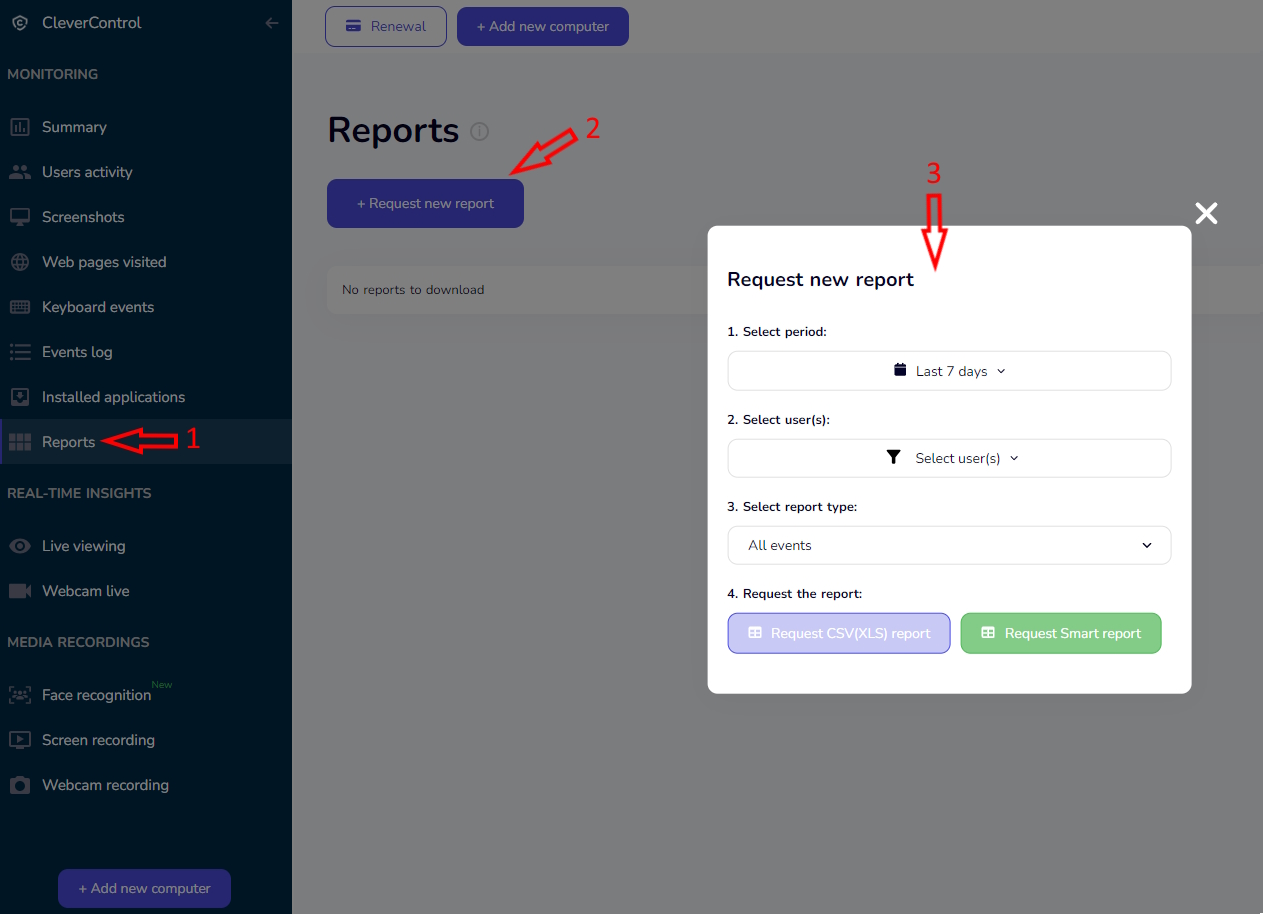
Chọn định dạng báo cáo. Có hai tùy chọn:
- CSV Report: bao gồm thông tin dạng văn bản, chẳng hạn như lịch sử trang web và truy vấn tìm kiếm.
- Smart Report: bao gồm nhật ký văn bản và phương tiện, chẳng hạn như ảnh chụp màn hình. Báo cáo Smart được tải xuống ở định dạng .zip và cần được giải nén bằng chương trình miễn phí như 7-Zip.
Tải xuống và xem lại:
- Sau khi chọn định dạng mong muốn, hãy nhấp vào nút dành cho loại báo cáo tương ứng.
- Báo cáo sẽ sẵn sàng trong vài phút. Sau khi được tạo, bạn có thể tải xuống từ cùng trang.
- Lưu ý rằng cả báo cáo CSV và Smart đều không bao gồm phần tóm tắt hoạt động hoặc biểu đồ thống kê người dùng.

Cách thay đổi cài đặt giám sát
Bạn có thể điều chỉnh cài đặt CleverControl theo nhu cầu và chọn các loại hoạt động mà chương trình sẽ ghi lại.
Mở cài đặt máy tính
- Nhấp vào địa chỉ email ở góc trên bên phải của bảng điều khiển.
- Chọn Computers từ menu thả xuống.
Quản lý các máy tính đã kết nối
Bạn sẽ thấy danh sách tất cả máy tính được kết nối với tài khoản. Trên trang này, bạn có thể:
- Chỉnh sửa tên máy tính hoặc người dùng bằng cách nhấp vào biểu tượng bút chì bên cạnh tên.
- Bắt đầu hoặc dừng giám sát toàn bộ máy tính hoặc từng người dùng.
- Bật hoặc tắt các tính năng bổ sung, chẳng hạn như ghi màn hình, ghi âm cuộc gọi và tự giám sát.
- Xóa máy tính khỏi bảng điều khiển bằng cách nhấp vào biểu tượng thùng rác. Lưu ý rằng thao tác này không gỡ cài đặt CleverControl khỏi máy tính.

Định cấu hình cài đặt cho một máy tính cụ thể
Để mở các cài đặt chi tiết hơn, hãy nhấp vào Setup Computer dưới tên máy tính.

Các cài đặt được chia thành hai mục chính:
Device Info
Mục này hiển thị thông tin về hệ điều hành của máy tính và phiên bản tác nhân CleverControl đã cài đặt.
Bạn cũng có thể xóa một số loại nhật ký đã lưu hoặc dừng chương trình từ xa bằng cách nhấp vào Remote Uninstall.
Lưu ý rằng Remote Uninstall không xóa tác nhân CleverControl khỏi máy tính đang được giám sát. Tính năng này chỉ dừng giám sát và ngăn tác nhân gửi dữ liệu mới. Để xóa hoàn toàn chương trình, bạn phải gỡ cài đặt trực tiếp trên máy tính đang được giám sát.
Cài đặt User Activity cho phép bạn chỉ định người dùng phải không hoạt động trong bao lâu trước khi khoảng thời gian đó được ghi nhận là thời gian không hoạt động trong nhật ký và thống kê. Các khoảng thời gian ngắn hơn sẽ không được tính là thời gian không hoạt động.

Monitoring Control
Mục này chứa phần lớn các cài đặt giám sát có sẵn.
Tại đây, bạn có thể bật hoặc tắt Clipboard monitoring, Screenshots, Screen recording, Call recording và các tùy chọn ghi lại hoạt động khác.
Nếu có nhiều micrô được kết nối với máy tính, bạn cũng có thể chọn micrô mà CleverControl sẽ sử dụng để ghi màn hình và ghi âm cuộc gọi.
Cách sắp xếp máy tính thành nhóm
Việc sắp xếp nhiều máy tính đã kết nối thành các nhóm giúp quản lý dễ dàng hơn. Hãy làm theo các bước sau:
Mở phần quản lý nhóm:
- Nhấp vào địa chỉ email ở góc trên bên phải của màn hình.
- Từ menu thả xuống, chọn Groups.
Tạo nhóm mới:
- Để tạo một nhóm mới, hãy nhấp vào Add new group .
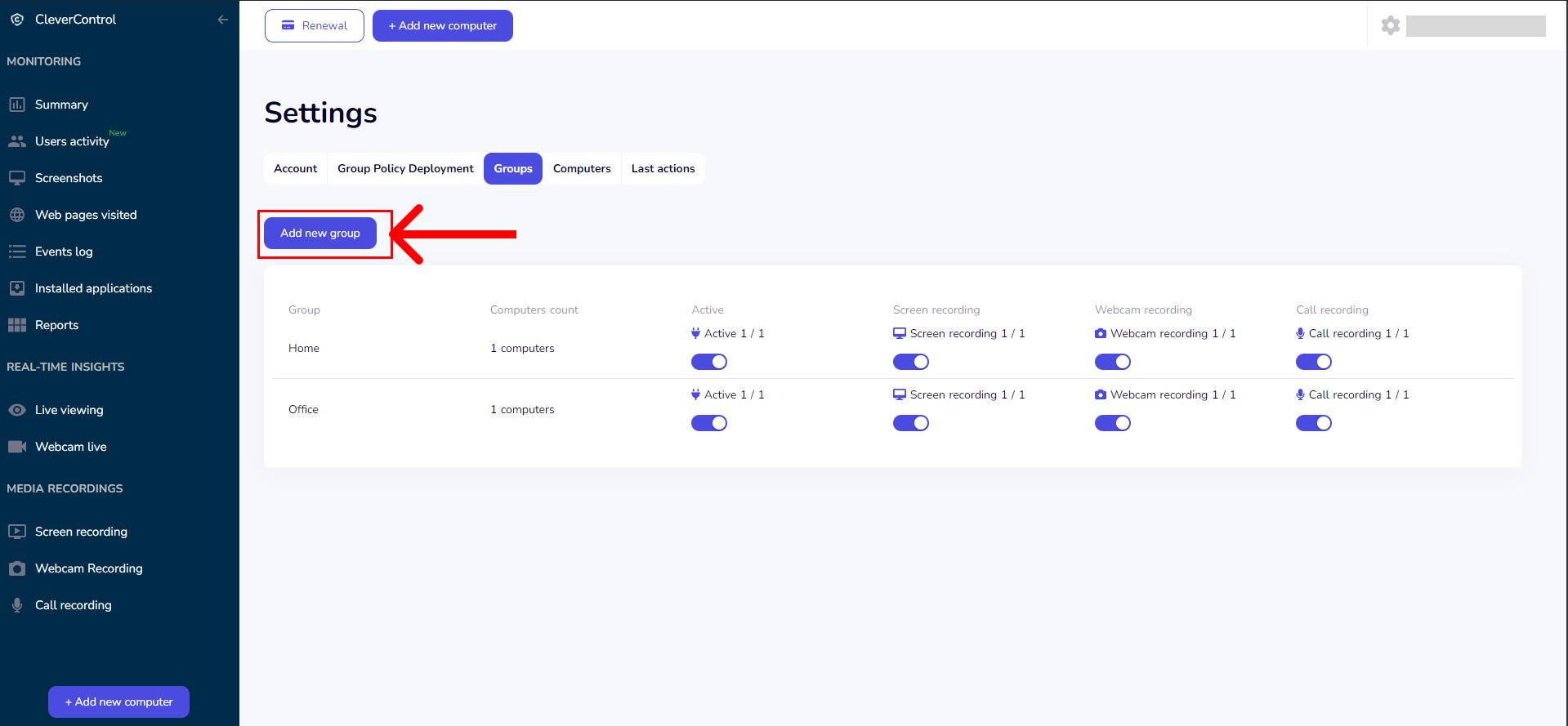
- Nhập tên cho nhóm.
- Chọn các máy tính muốn đưa vào nhóm.
- Nếu trước đây bạn đã tạo nhóm, có thể sử dụng nút chuyển Computers without groups để xác định các máy tính chưa được gán vào nhóm nào.
- Để tạo một nhóm mới, hãy nhấp vào Add new group .

Cách tạo tài khoản phụ
Nếu bạn giám sát nhiều phòng ban hoặc nhóm trong một tài khoản CleverControl, có thể tạo tài khoản phụ cho trưởng phòng, trưởng nhóm hoặc nhân sự được ủy quyền khác.
Quyền truy cập của mỗi tài khoản phụ có thể được giới hạn ở các nhóm máy tính cụ thể. Nhờ đó, người quản lý chỉ có thể xem hoạt động của những nhân viên thuộc trách nhiệm của mình mà không truy cập dữ liệu của các phòng ban khác.
Việc giới hạn quyền truy cập theo cách này cũng giúp bảo vệ quyền riêng tư và hỗ trợ các yêu cầu tuân thủ bằng cách đảm bảo dữ liệu nhân viên chỉ dành cho những người được ủy quyền cần dữ liệu đó cho công việc.
Lưu ý rằng tài khoản phụ có quyền hạn chế. Người dùng tài khoản phụ có thể xem dữ liệu giám sát nhưng không thể thay đổi cài đặt giám sát của các máy tính đã kết nối.
Để tạo tài khoản phụ:
- Trước tiên, hãy tạo một nhóm máy tính và thêm các máy tính mà người quản lý nhóm hoặc phòng ban cần truy cập.
Mở tab Access Rights ở đầu bảng điều khiển và nhấp vào + Add a subaccount.
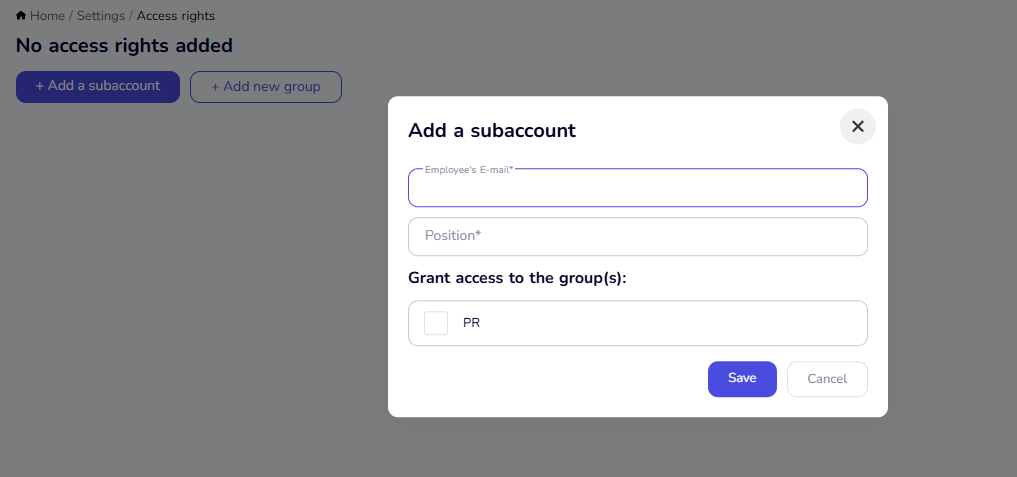
Nhập địa chỉ email và chức vụ của người quản lý. Sau đó, chọn nhóm hoặc các nhóm máy tính mà người đó cần truy cập và nhấp vào Save.
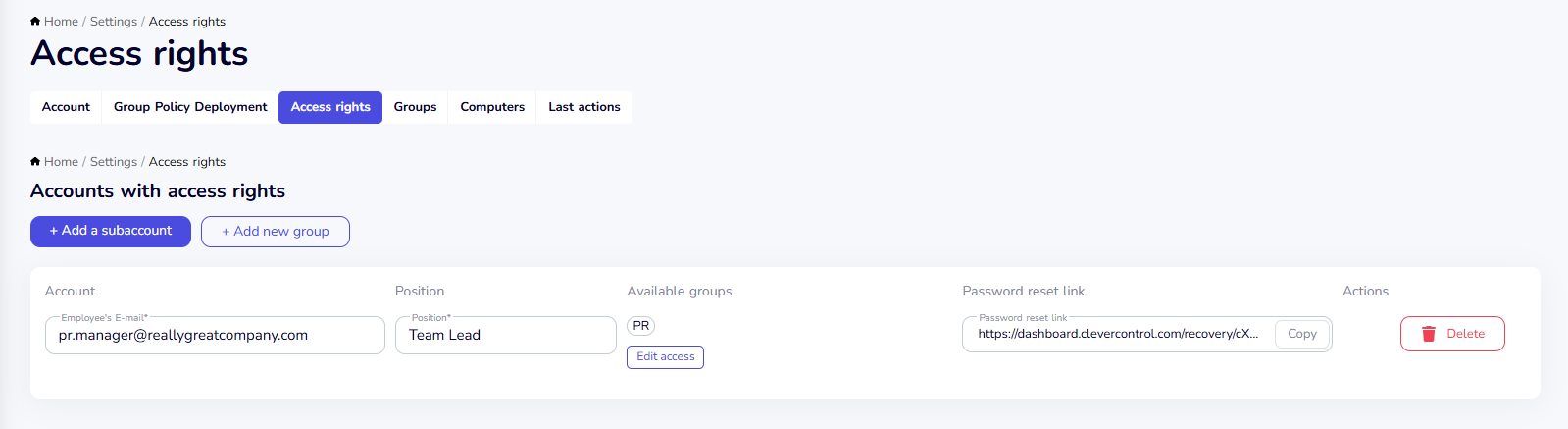
- Sau khi tạo tài khoản phụ, hãy sao chép liên kết đặt lại mật khẩu và gửi cho người quản lý. Họ có thể dùng liên kết này để tạo mật khẩu an toàn và đăng nhập vào tài khoản phụ.
Bạn có thể quản lý các tài khoản phụ hiện có trên trang Access Rights. Tại đây, bạn có thể:
- Thay đổi địa chỉ email hoặc chức vụ của tài khoản phụ.
- Thêm hoặc xóa các nhóm máy tính.
- Xóa tài khoản phụ khi không còn cần thiết.


Cách xóa chương trình
Để gỡ cài đặt CleverControl, hãy làm theo hướng dẫn tương ứng với hệ điều hành của máy tính đang được giám sát: