
macOS کے لیے تنصیب کی گائیڈ
نوٹ: پروگرام صرف اسی کمپیوٹر پر انسٹال کریں جس کی نگرانی کرنا چاہتے ہیں۔
اہم: اپنی macOS version چیک کریں۔ compatibility یقینی بنانے کے لیے CleverControl دو مختلف versions فراہم کرتا ہے۔ ایک macOS 10.11 سے 10.15 کے لیے اور دوسرا macOS 11.0 اور بعد کے versions کے لیے ہے۔
پروگرام انسٹال کرنا
اگر antivirus موجود ہو تو اسے بند کریں۔ درج ذیل program folder کو بھی antivirus exceptions میں شامل کریں: /library/clv/clv.app
نوٹ: exceptions شامل کرنے کی ہدایات antivirus کی official website پر مل سکتی ہیں۔
installation file چلائیں اور ہدایات پر عمل کریں۔
- If you try to open the installer by double-clicking it, you might get the error: "CleverControl Agent for Mac" can't be opened because it is from an unidentified developer.
- If an error occurs, right-click the installer and select "Open" in the menu. Click the "Open" button in response to the system's request.
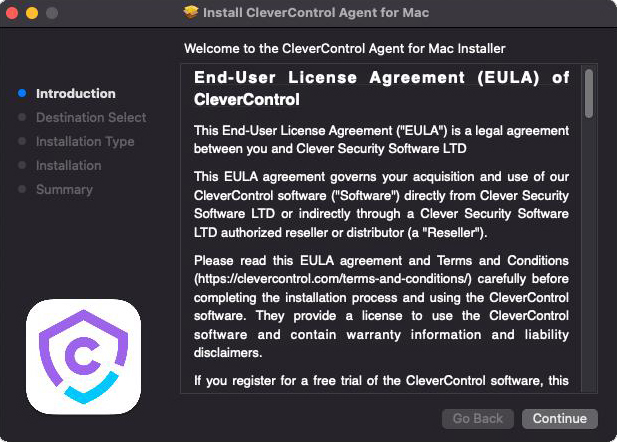
Read the Disclaimer and click "Continue" to confirm your understanding.
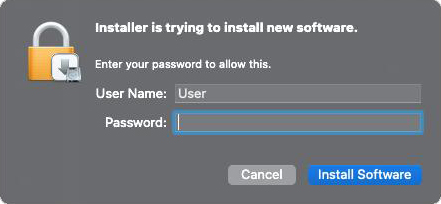
system کے کہنے پر administrator password درج کریں۔ installation کے لیے administrator password ضروری ہے۔
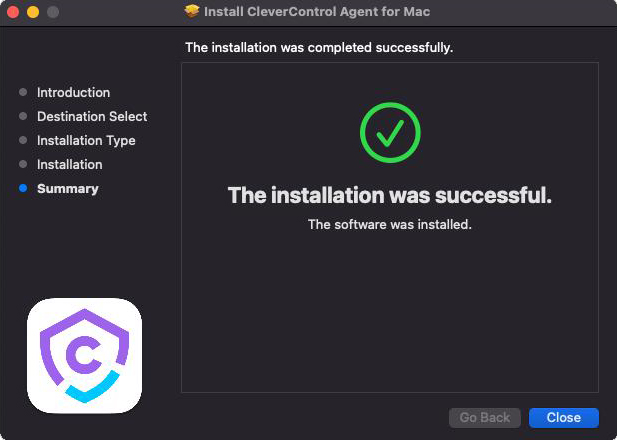
installation مکمل ہونے پر یہ window نظر آئے گی:


Setup Wizard
اس کے بعد ایک wizard ظاہر ہوگا جو پروگرام setup کرنے میں مدد کرے گا۔
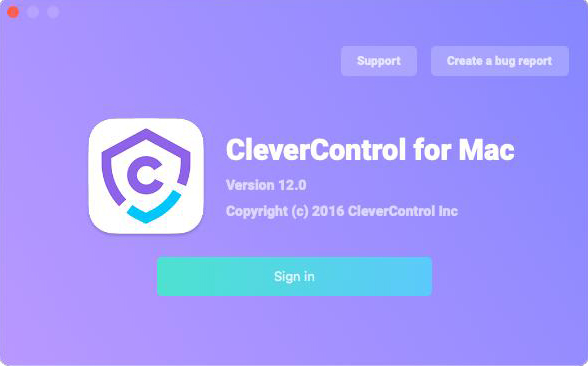
Click the "Sign in" button and enter the email associated with your CleverControl account.
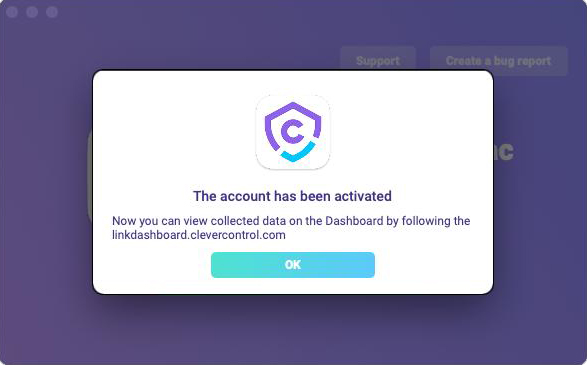
اگر اکاؤنٹ کا email درست درج کیا گیا ہو تو یہ پیغام نظر آئے گا:
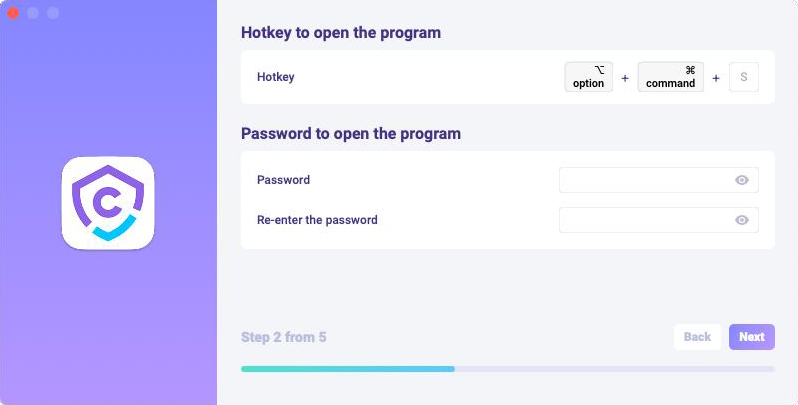
In the next section, you can change the default hotkeys to open the program. In "Password", you can set the password to open the program if necessary. If you leave the field empty or re-enter the password incorrectly, it will not be set, and the program will open without the password.
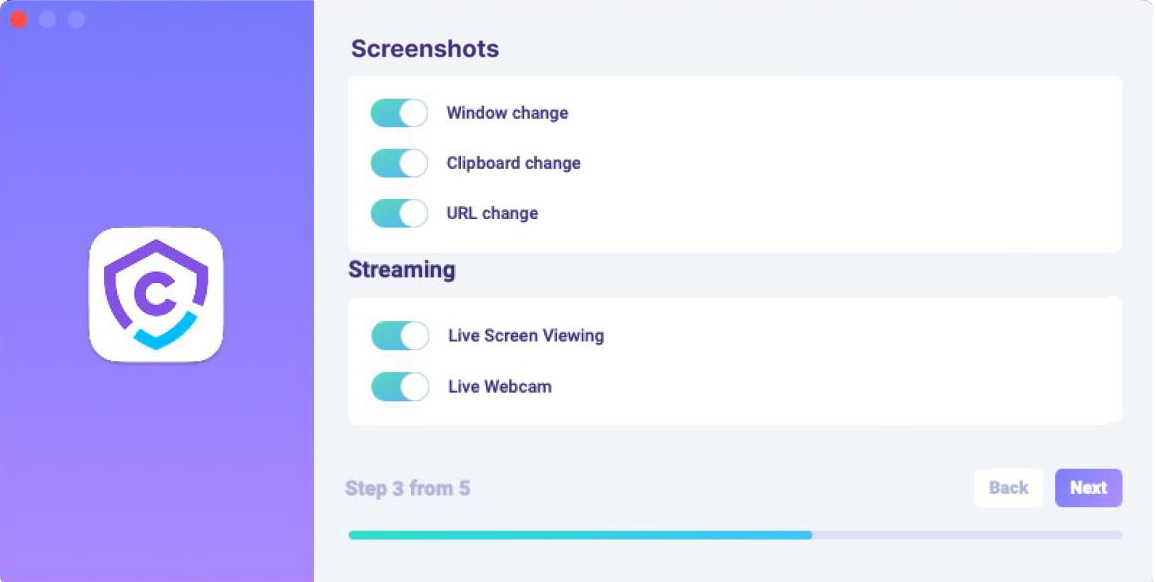
In "Media", you can set preferences for screenshot and live viewing features.
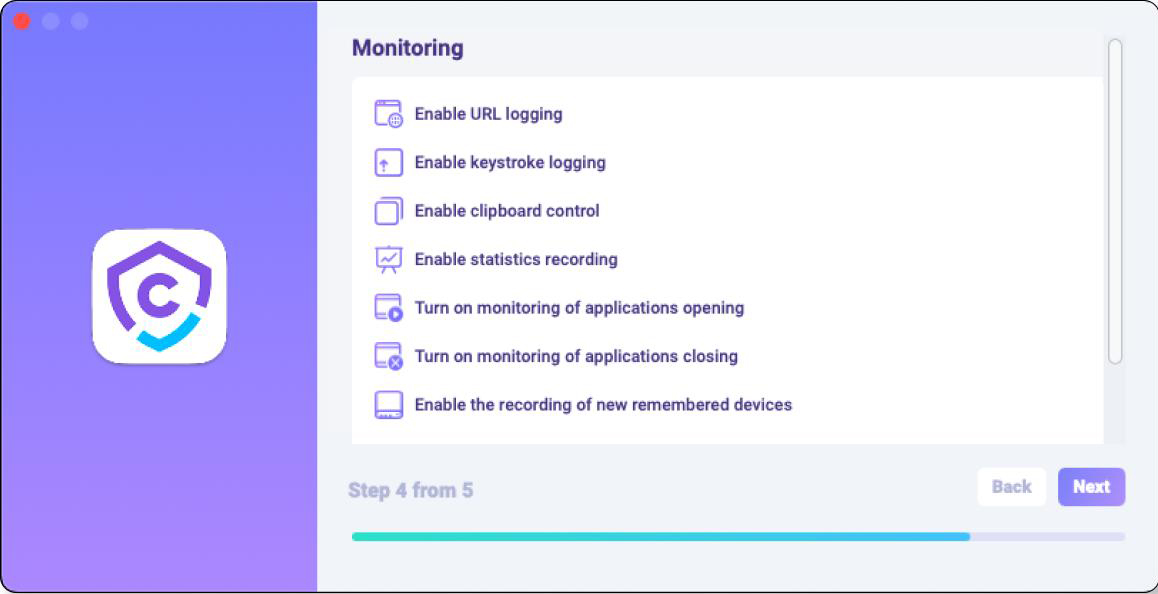
In "Monitoring control", you can enable or disable monitoring of visited websites, program and clipboard activity.
اہم نوٹ: The program will require additional access privileges for monitoring. You can see how to grant them in "How to enable monitoring".
- Click "Done" to exit the Wizard. The program will start in a few seconds. To open it, press the hotkeys.


monitoring کیسے فعال کریں
CleverControl کو monitoring کے لیے اضافی permissions درکار ہیں۔ setup کے دوران پروگرام خودکار طور پر انہیں دینے کا مطالبہ کرے گا۔

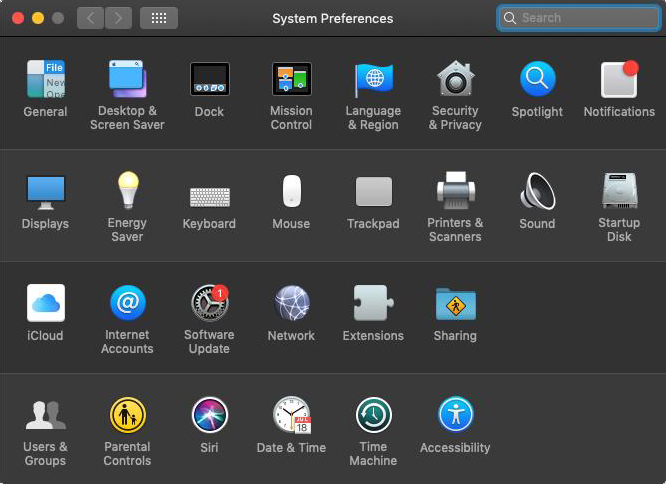
Open "System Preferences" and go to "Security and Privacy".
Accessibility پر جائیں، تبدیلیوں کی اجازت دینے کے لیے lock پر کلک کریں، پھر administrator password درج کریں۔
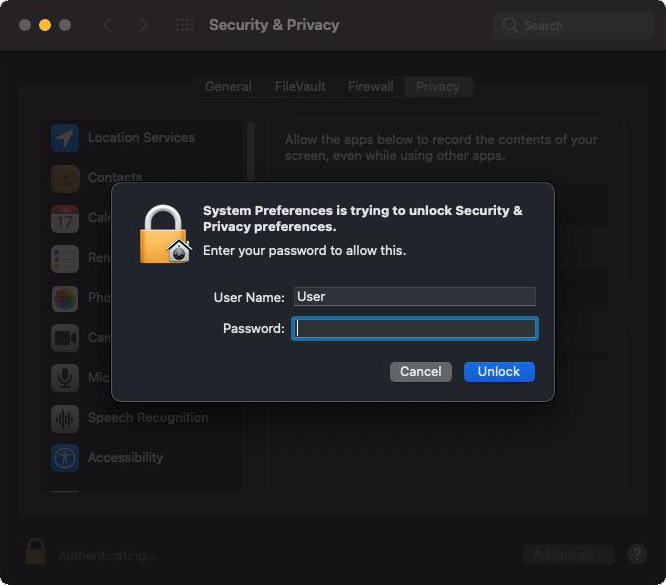
Accessibility permission screenshots لینے اور user statistics حاصل کرنے کے لیے ضروری ہے۔
Add "CleverControl" to the list of apps that are allowed to control the computer.
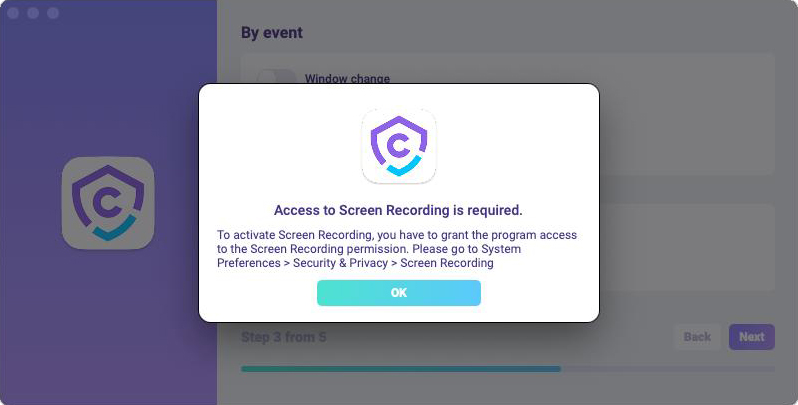
Go to "Screen Recording" and allow "CleverControl" there as you did in "Accessibility".
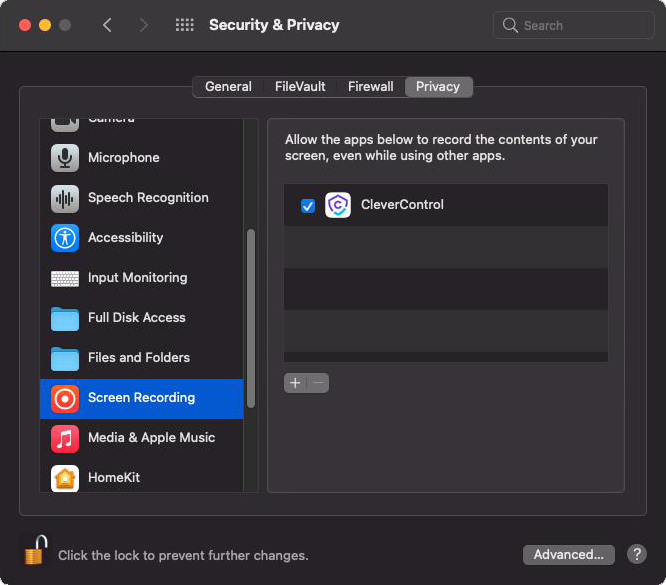
"Screen Recording" is required for screenshots and live screen viewing.
- Navigate to "Automation" and grant access to "CleverControl" as you did in the "Accessibility" settings. Access to "Automation" is essential for tracking internet activity.


نوٹ: For "CleverControl" to appear in the list of the Automation section, you should open your browser.
installation مکمل ہونے کے بعد پروگرام خودکار طور پر اکاؤنٹ سے منسلک ہو جائے گا اور کمپیوٹر 5–10 منٹ میں online account میں ظاہر ہوگا۔
پروگرام میں monitoring settings کیسے تبدیل کریں
نگرانی کیے جانے والے device پر انسٹال پروگرام میں preferences تبدیل کی جا سکتی ہیں۔ یہ وہی settings ہیں جو installation کے دوران Setup Wizard میں استعمال ہوئی تھیں۔
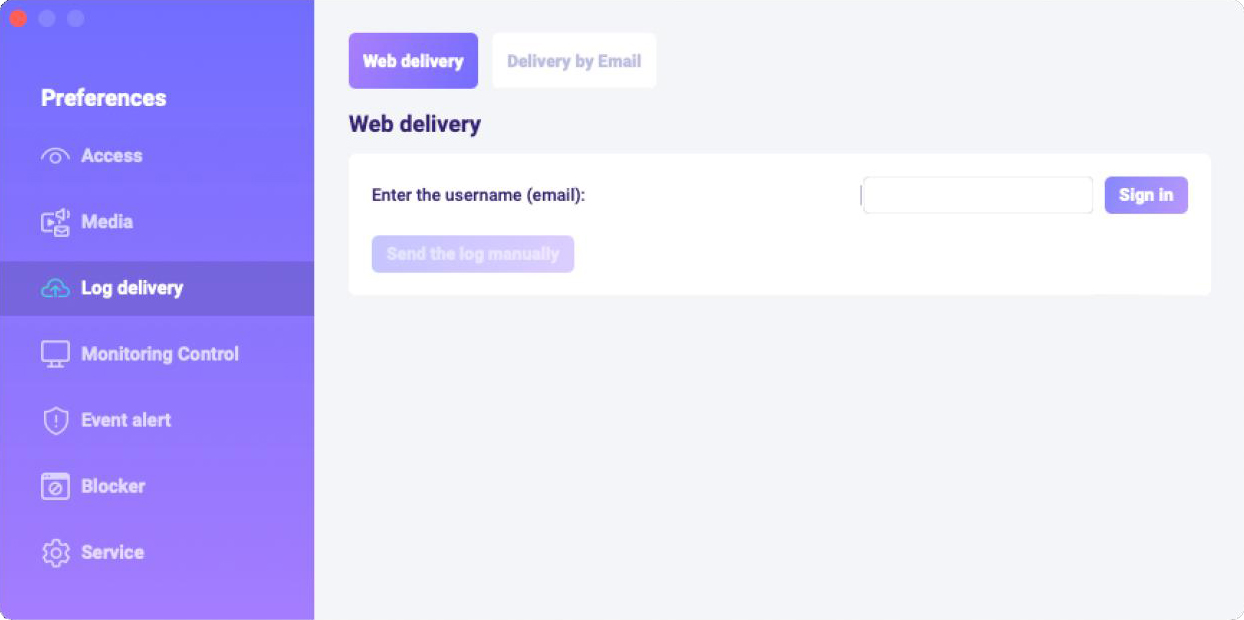
program preferences کھولنے کے لیے program icon پر right-click کریں یا default hotkey Opt+Cmd+S استعمال کریں۔
In the "Log delivery" section, you can change your account if necessary.

پروگرام کیسے uninstall کریں؟
نگرانی کیے جانے والے کمپیوٹر سے پروگرام حذف کرنے کے کئی طریقے ہیں:
preferences کے ذریعے پروگرام uninstall کیا جا سکتا ہے۔ ان مراحل پر عمل کریں:
- نگرانی کیے جانے والے کمپیوٹر پر پروگرام کھولیں؛
- Preferences > Service پر جائیں؛
- Click "Uninstall Program".
program folders کے ذریعے بھی پروگرام uninstall کیا جا سکتا ہے۔ ان مراحل پر عمل کریں:
- Go to the "Library" folder;
Delete the "clv" folder.
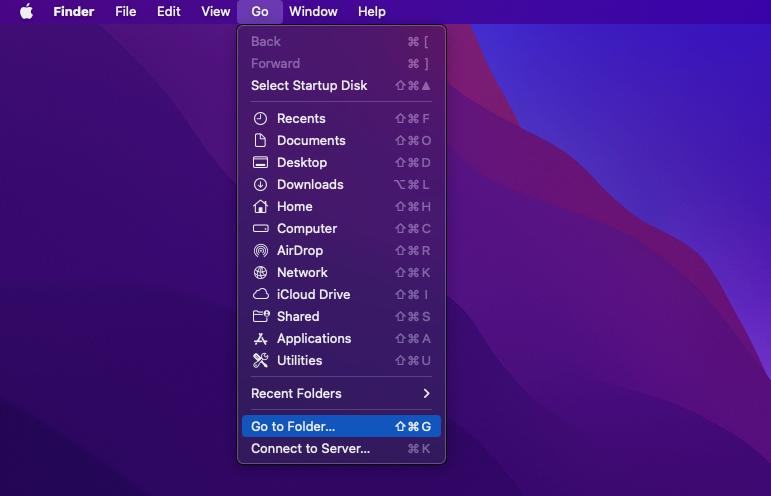
نوٹ: The "Library" folder is hidden by default. To find it, you should go into Finder (the desktop screen), click on the "Go" menu, then select "Go to Folder"...
- Navigate to the following directory: Users/Shared, and delete the "clv" folder.

اکثر پوچھے گئے سوالات
اگر نگرانی کیے جانے والے device پر پروگرام میں لاگ اِن کرنے کا password بھول جائیں تو کیا کریں؟
پروگرام میں لاگ اِن کرنے کا password installation کے دوران مقرر ہوتا ہے۔ اگر بھول جائیں تو اسے تبدیل کرنے کے لیے پروگرام دوبارہ انسٹال کرنا ہوگا۔
monitoring settings کہاں تبدیل کرنی چاہئیں: online account میں دور سے یا براہِ راست پروگرام میں؟
monitoring settings آپ اپنی سہولت کے مطابق کسی بھی طریقے سے تبدیل کر سکتے ہیں۔ اگر ابتدا میں پروگرام میں configure کیا تھا تو بعد میں دور سے یا براہِ راست پروگرام میں تبدیل کیا جا سکتا ہے۔ سب سے حالیہ settings کو ترجیح ملے گی۔
Mac پر دوسرے user account کی نگرانی کے لیے ان مراحل پر عمل کریں:
- user account میں لاگ اِن کریں؛
- /Library/clv/clv.app سے پروگرام کھولیں؛
- Preferences/Service پر جائیں؛
- Check the "Run automatically at the system startup" checkbox.