
Domande frequenti
Monitoraggio dei dipendenti: Domande generali
Employee monitoring software allows organizations to track work hours and analyze how employees use their work time and company devices. Such software usually monitors the start and end of the work day, idle time, computer activity, application and website usage, communication, and in some cases, location. Companies use employee monitoring software to evaluate productivity, enhance security, protect data, and ensure compliance with company policies.
Typically, employee monitoring software is a small program (sometimes called an agent) that employers install on employees' computers or devices. This agent works in the background and collects data on various activities. The collected data is then transmitted to a central server or dashboard, where authorized personnel, such as managers and administrators, can view and analyze it.
When implemented transparently and with ethical considerations, employee monitoring is a powerful tool for increasing productivity. It provides insights into work processes, helps detect inefficiencies, and encourages data-driven measures to improve the situation. Besides, the awareness of being monitored can encourage employees to stay focused and on task.
When choosing employee monitoring software, consider features that align with your needs, such as tracking work hours, improving productivity, or maintaining security. Valuable features are:
- time tracking;
- website and application usage monitoring;
- idle time detection;
- screenshots/screen recording;
- reporting and analytics;
- alerts and notifications;
- online monitoring dashboard;
- integrations.
Employee monitoring is important because it contributes to a more secure, efficient, compliant, and productive work environment. It provides employers with valuable insights into how work time is spent, helping to:
- highlighting inefficient work processes;
- improving productivity;
- increasing security;
- ensuring compliance with company policies and legal requirements;
- optimizing resources
- supporting performance evaluations.
When implemented thoughtfully and transparently, employee monitoring leads to several positive outcomes for both the organization and the employees. It is a powerful tool to improve workflow efficiency and productivity. It can encourage employees to be responsible for their work hours, identify training needs, and help managers recognize and reward performance. Besides, employee monitoring helps protect the company against data breaches, cyber threats, and inappropriate behavior, creating a safer work environment for everyone.
The main benefits of employee monitoring are better performance and productivity, enhanced data security, lower risks or insider threats, improved accountability, better resource management and allocation, and informed decision-making.
On the other hand, monitoring can potentially decrease employee morale, undermine trust, create unwanted stress and pressure, and negatively affect the company culture. Besides, if tracking is implemented without considering applicable regulations, it can raise legal and ethical concerns.
Employers typically state they track and monitor employee behaviors to improve productivity, enhance security and protect sensitive data, ensure compliance with internal policies and external regulations, prevent time theft, and gain insights into work patterns for better resource management and performance evaluation.
The primary business reasons for employee monitoring include safeguarding company assets and intellectual property, minimizing legal liabilities through compliance and record-keeping, and optimizing workflows. Besides, employee monitoring is a valuable data source to back decisions aimed at improving overall business performance and profitability.
These risks include potentially damaging employee trust and morale, increasing stress and anxiety among the workforce, facing legal challenges related to privacy violations, misinterpreting data which could lead to unfair treatment, and potentially stifling creativity and innovation due to constant surveillance.
Critics fear that employee monitoring programs can lead to a surveillance-heavy work culture that erodes privacy, reduces autonomy, increases job-related stress and burnout, creates an imbalanced power dynamic between employers and employees, and could be used to discriminate against certain workers or suppress legitimate workplace organizing.
The legality of employee monitoring depends on the location. Generally, it is legal in many jurisdictions, including the USA, Europe, and India. However, the scope of activities the employer can monitor may vary depending on the applicable state and local regulations. Besides, organizations are often obliged to notify the staff about the monitoring.
Generally, employers are allowed to track computer and internet usage on company equipment, monitor work-related communications through company email and messaging systems, and use video surveillance in common work areas. Monitoring of personal devices, private communications, or private areas like restrooms is typically restricted or prohibited.
Identifying a single "weakest" employee monitoring law is difficult. Legal frameworks differ significantly across jurisdictions: some deliver minimal employee privacy protections, while others have stricter notification and consent requirements. Generally, areas with fewer specific statutes addressing electronic monitoring and workplace privacy may offer less protection to employees.
Employees can check for monitoring software by looking for unfamiliar processes running in their computer's Task Manager or system monitor, analyzing network activity for unusual data transfers, and using security programs.
There are several signs that the employer may be monitoring the computer: unusual computer behavior, such as slow performance, strange pop-ups or errors, suspicious processes in the Task Manager or Activity Monitor (on macOS), or increased network activity. If employees notice these signs, they can check installed apps for unfamiliar names, use antivirus or security software, or consult the IT or HR specialist in their organization.
On macOS, employees can open Activity Monitor to view running processes and identify unfamiliar or suspicious applications. One can also examine login items and launch agents that start automatically, review network utility for unusual connections, and check System Settings/Preferences for installed profiles that might indicate device management or monitoring.
Attempting to block employee monitoring software on a company-owned device is generally not advisable. It may violate company policy, potentially leading to disciplinary action, including termination. Technical methods to impede monitoring, such as using virtual machines, attempting to disable processes, or using tools to mimic activity, may be detectable by the employer and could have serious consequences. It is best to understand and comply with your company's monitoring policies.
FAQ sul software CleverControl
CleverControl è un software basato sul cloud, pertanto tutti i dati registrati dall'agente CleverControl installato sui computer dei dipendenti vengono salvati su un server remoto protetto. Per accedere ai dati è necessario registrare un account per poter esaminare le informazioni in modo sicuro su un server remoto.
CleverControl è compatibile con i sistemi operativi Windows e OS X, pertanto è possibile installarlo su qualsiasi computer portatile o desktop con qualsiasi versione di Windows, compresa l'ultima, Microsoft Windows 10, o su qualsiasi OS X dalla versione 10.13 High Sierra in poi.
Riteniamo che sia più conveniente per l'utente registrarsi con un account prima di installare CleverControl Agent. Infatti, per completare il processo di installazione è necessario inserire i dati del proprio account per stabilire una connessione al server cloud. Pertanto, se non si dispone di un account, verrà richiesto di crearne uno.
CleverControl is intended for lawful employee monitoring on company-owned devices and should be used with proper authorization, employee notification, and internal policies. Employers are responsible for informing employees about monitoring and configuring the software according to applicable laws and workplace privacy requirements. Employees can get access to the collected data via the Self-Monitoring feature.
Yes. CleverControl Agent can record configured work-related activity on authorized company devices, according to the organization's monitoring policy and applicable law. Reports may include application usage, website activity, screenshots, and other enabled features, where legally permitted and properly disclosed.
Yes. CleverControl can record configured website activity on authorized company devices. Depending on the settings, applicable laws, and the company's internal policies, authorized managers may review visited websites and related screenshots.
Sì, il blocco dei siti web è una delle funzioni di CleverControl Agent. È possibile bloccare determinate pagine web o intere categorie, ad esempio tutti i social network. È possibile farlo nelle "Impostazioni remote" del proprio account.
Per visualizzare i dati di CleverControl Agent è necessario accedere al proprio account remoto nella dashboard: https://dashboard.clevercontrol.com/ . Per accedere è possibile utilizzare qualsiasi browser web su qualsiasi dispositivo.
Al momento è necessario accedere al computer con diritti di amministratore per installare il programma. Tuttavia, il processo di installazione richiederà solo un paio di istanti.
Tutte le impostazioni possono essere modificate e applicate da remoto nell'account del dashboard. Accedere alla scheda "Impostazioni remote", modificare le impostazioni e fare clic su "Applica a questo computer" o "Applica a tutti i computer".
I termini di archiviazione sono diversi a seconda del tipo di dati e sono i seguenti: Eventi - un anno, Schermate - sei mesi, Registrazione schermo, Registrazione webcam e Registrazione chiamate - un mese. Successivamente, i dati vengono eliminati automaticamente senza possibilità di recupero. Se si desidera conservare il registro eventi e gli screenshot oltre questo periodo, è possibile utilizzare Report per esportare i dati.
Important: Automatic start scheduling should be configured only on authorized company devices and according to the organization's written monitoring policy, working-hours rules, and applicable law. Monitored users must be informed in advance, and consent must be obtained where required.
Per impostazione predefinita, CleverControl si avvia all'accensione del computer. A volte è necessario che venga eseguito all'ora programmata del giorno. È impossibile programmare l'avvio automatico di CleverControl tramite le impostazioni della versione attuale del programma. Tuttavia, è possibile farlo con l'aiuto di Windows Task Scheduler.
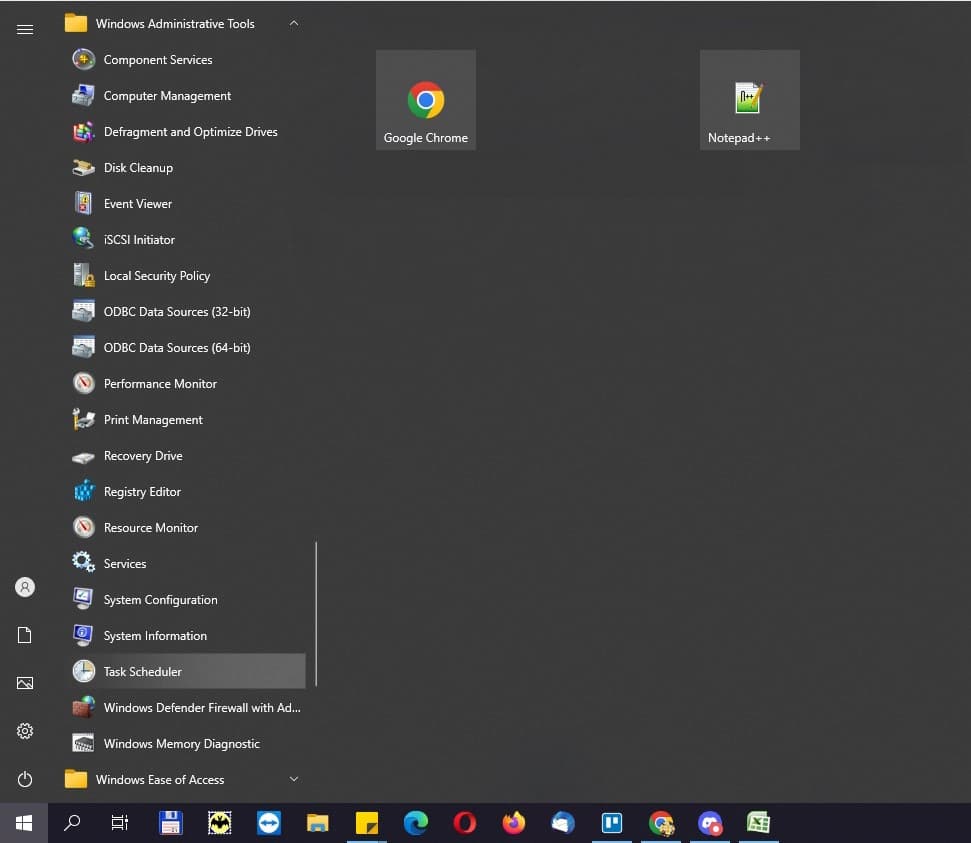
Fare clic sull'icona di Windows nella barra delle applicazioni. Scorrere l'elenco dei programmi e trovare Strumenti di amministrazione di Windows. Fare clic sulla cartella per espanderla e fare clic su Pianificazione attività per eseguirla.
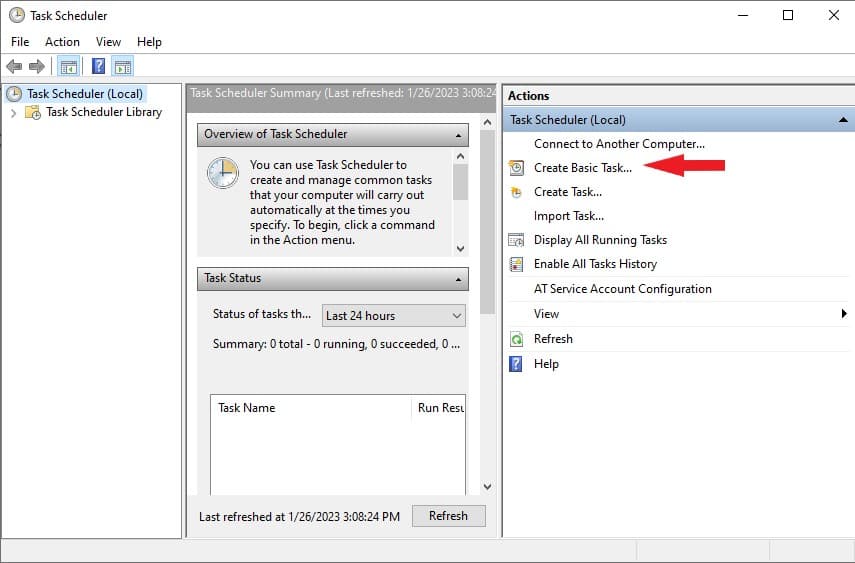
Fare clic su Crea attività di base.
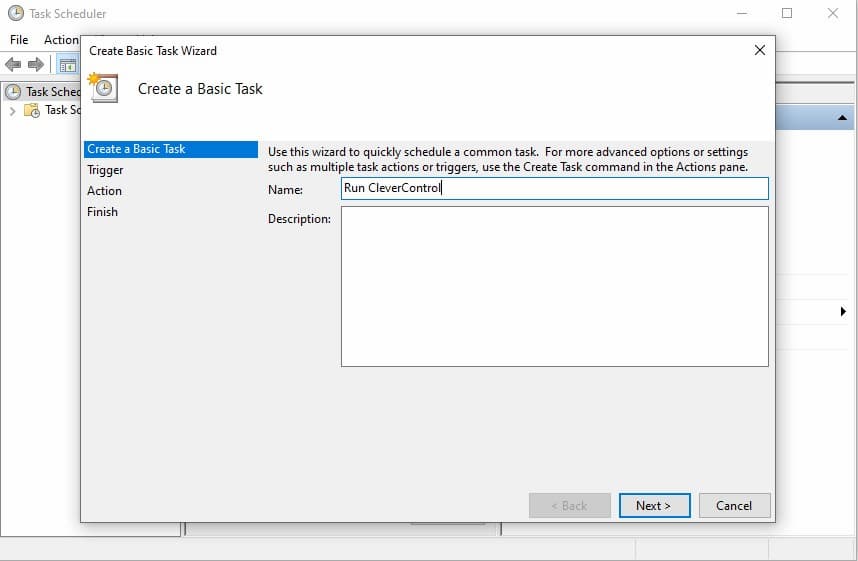
Inserire il nome dell'attività, ad esempio "Esegui CleverControl". Aggiungete una descrizione (facoltativa). Quindi, fare clic su Avanti.
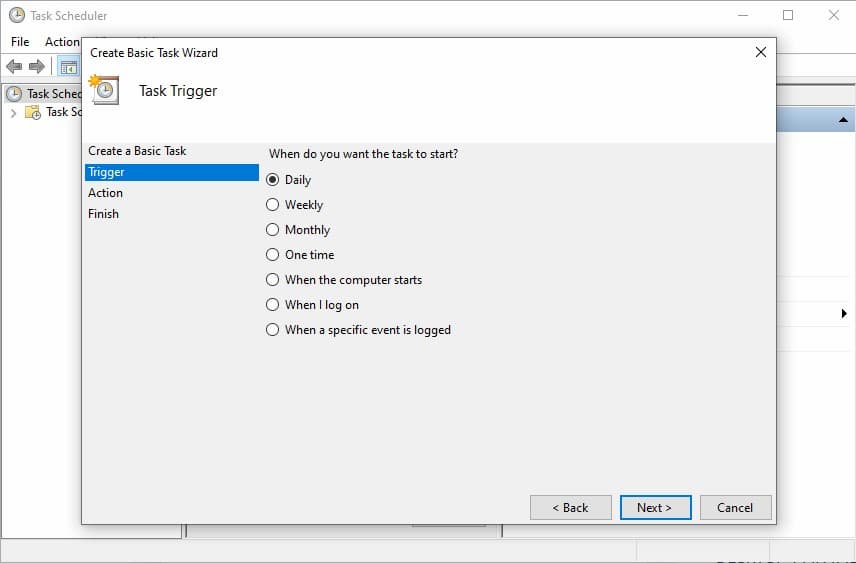
Scegliere Giornaliero e fare clic su Avanti.
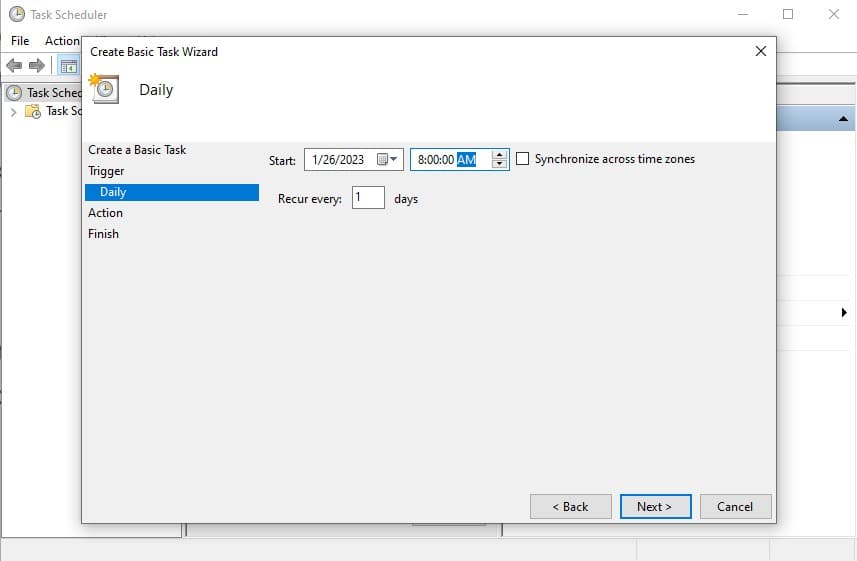
Impostate l'ora in cui CleverControl deve essere eseguito, ad esempio le 8:00:00 del mattino. Fare clic su Next per continuare.
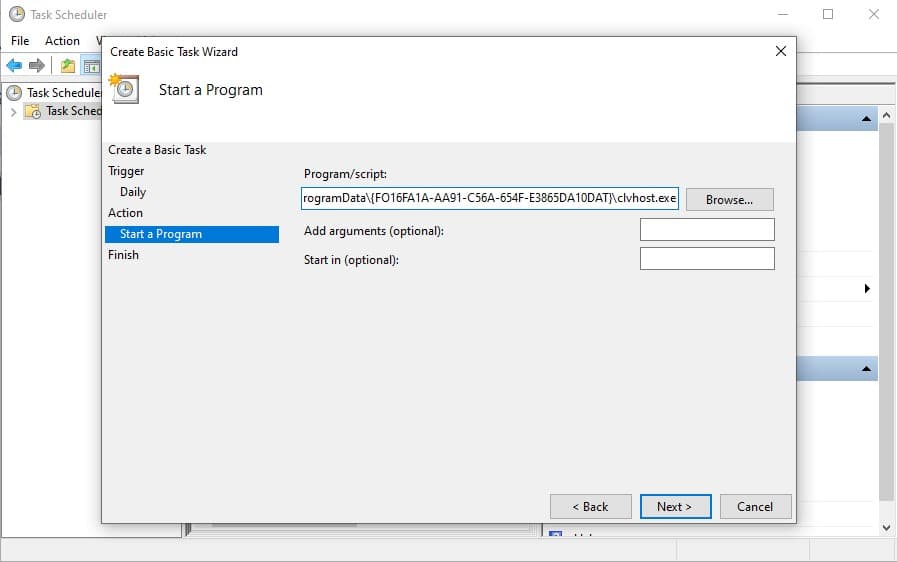
Copy and paste the path: C:\ProgramData\FO16FA1A-AA91-C56A-654F-E3865DA10DAT\clvhost.exe to the Program/Script field. Click Next.
Fare clic su Finisci.
Important: Automatic stop scheduling can help align monitoring with working hours and internal policy requirements. Organizations should configure monitoring schedules according to their written monitoring policy, notify monitored users in advance, and obtain consent where required by law.
Per impostazione predefinita, CleverControl funziona sempre quando il computer monitorato è acceso. Tuttavia, se si utilizza un computer personale per lavoro, si desidera che il monitoraggio cessi al termine della giornata lavorativa. È impossibile programmare l'arresto automatico di CleverControl tramite le impostazioni della versione attuale del programma. Tuttavia, è possibile farlo con l'aiuto di Windows Task Scheduler.
Per prima cosa, è necessario creare uno script batch che esegua e chiuda il programma. Aprite il Blocco note e digitate quanto segue: TASKKILL /F /IM clvhost.exe
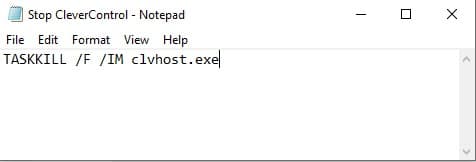
Salvate il file con l'estensione .bat, ad esempio "Stop CleverControl.bat".
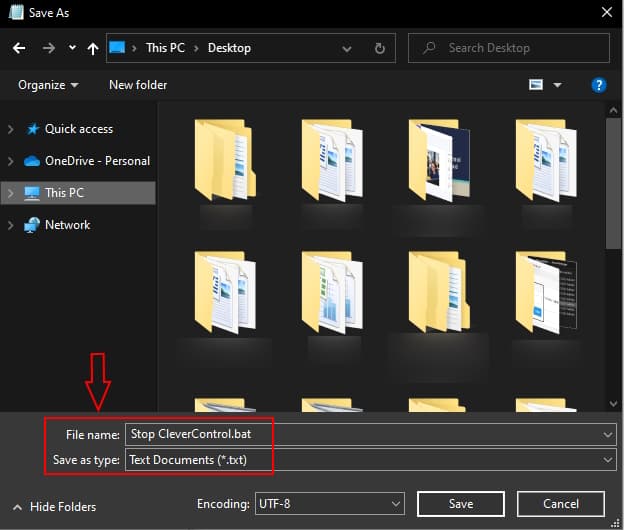
Successivamente, è necessario pianificare l'attività per interrompere CleverControl. Fate clic sull'icona di Windows nella barra delle applicazioni. Scorrere l'elenco dei programmi e trovare Strumenti di amministrazione di Windows. Fare clic sulla cartella per espanderla e fare clic su Pianificazione attività per eseguirla.
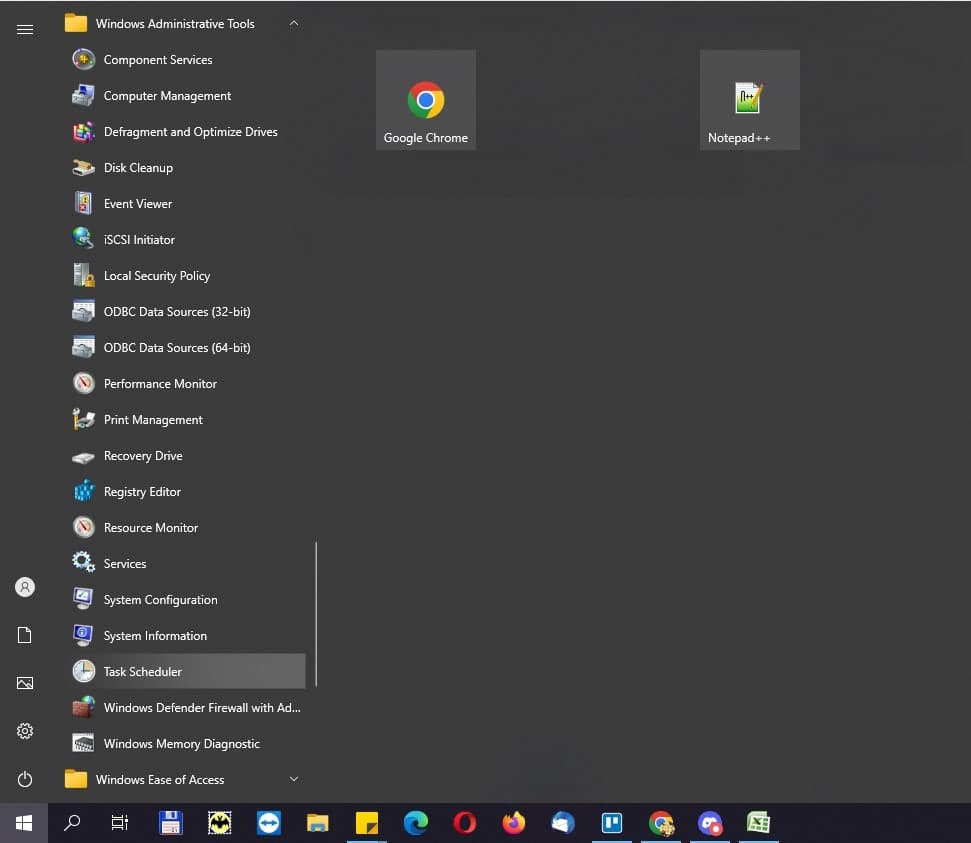
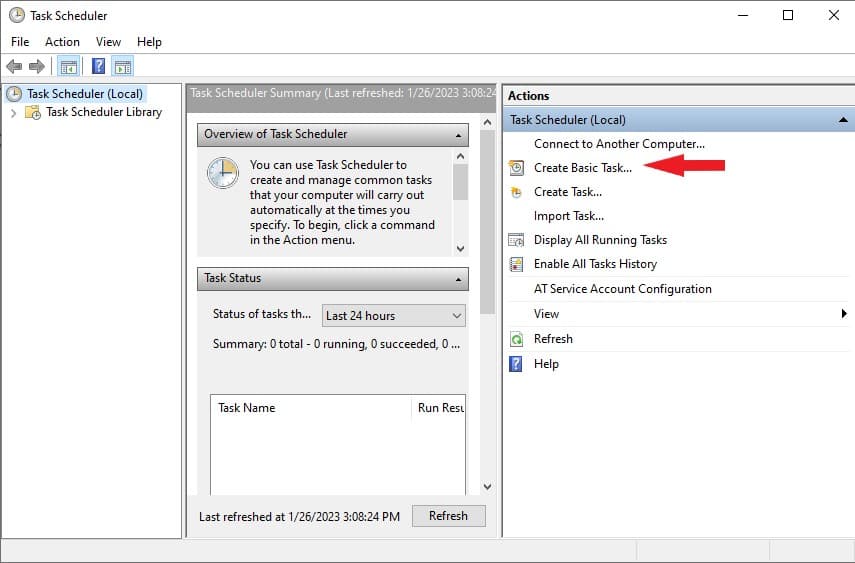
Fare clic su Crea attività di base.
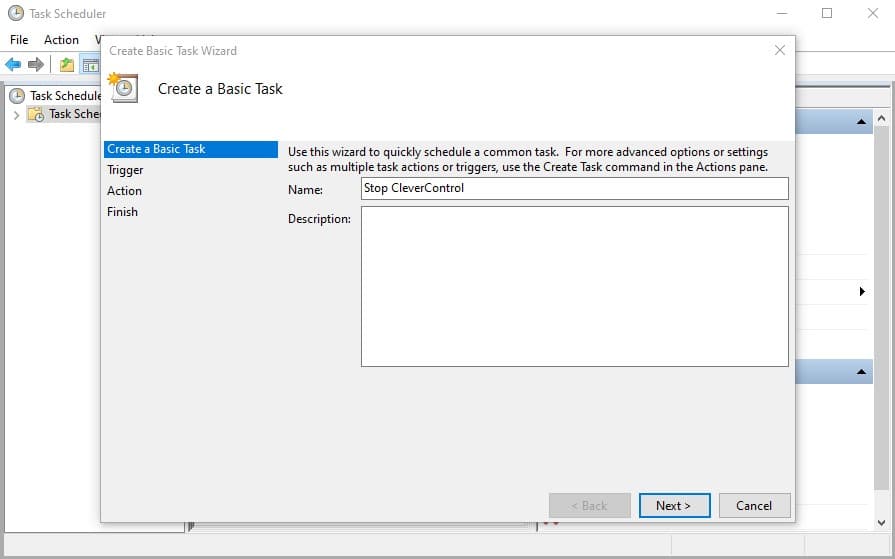
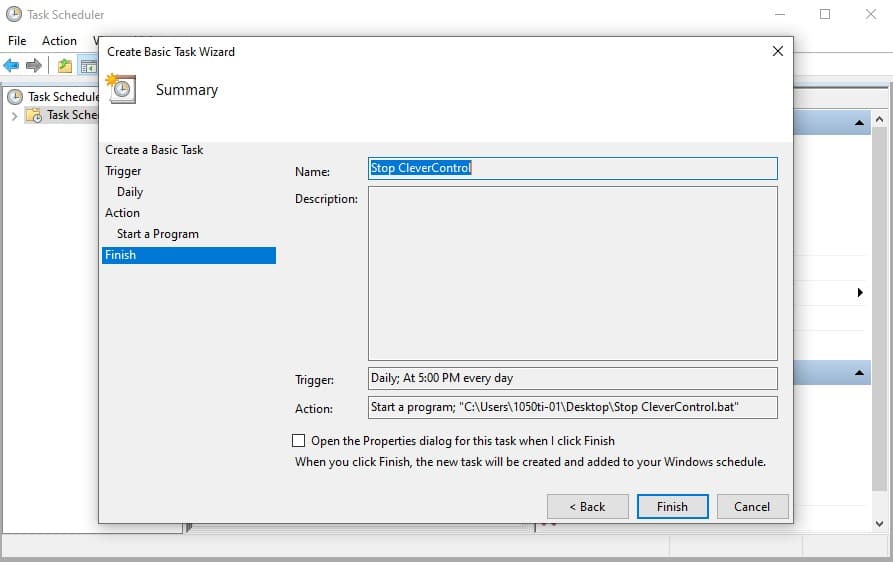
Inserire il nome dell'attività, ad esempio "Arresta CleverControl". Aggiungere una descrizione (facoltativa). Quindi, fare clic su Next.
Scegliere Giornaliero e fare clic su Avanti.
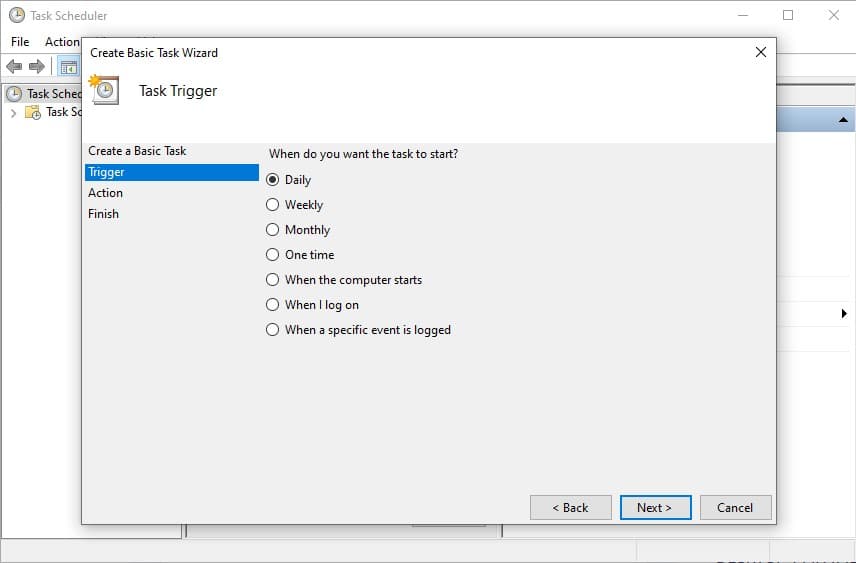
Scegliete l'ora in cui CleverControl deve essere eseguito, ad esempio le 17:00. Fare clic su Next per continuare.
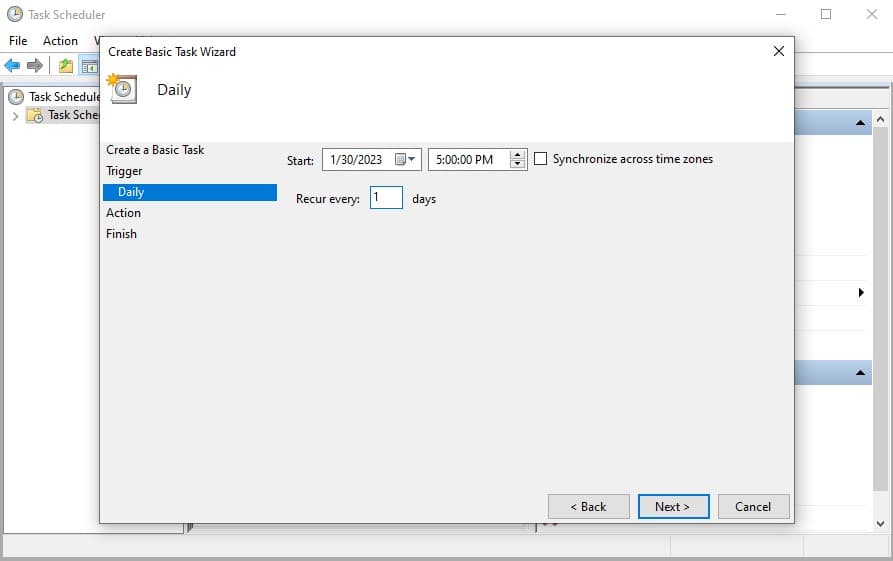
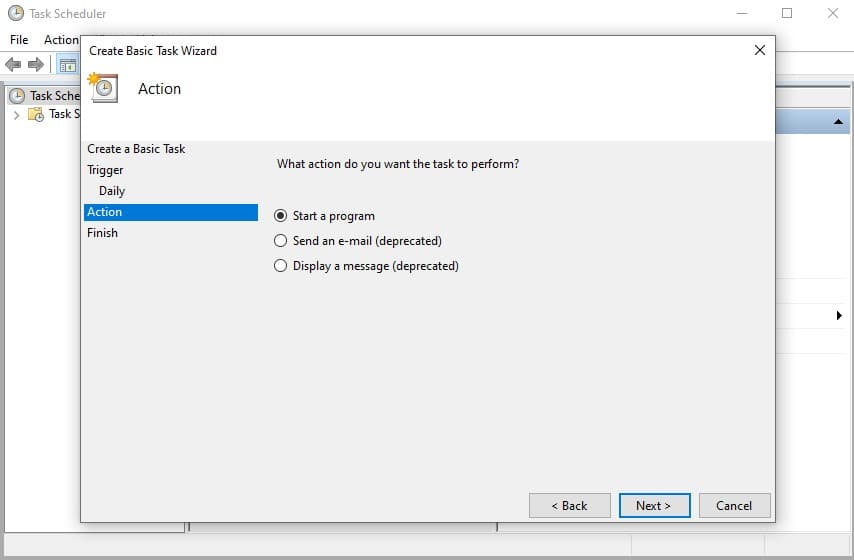
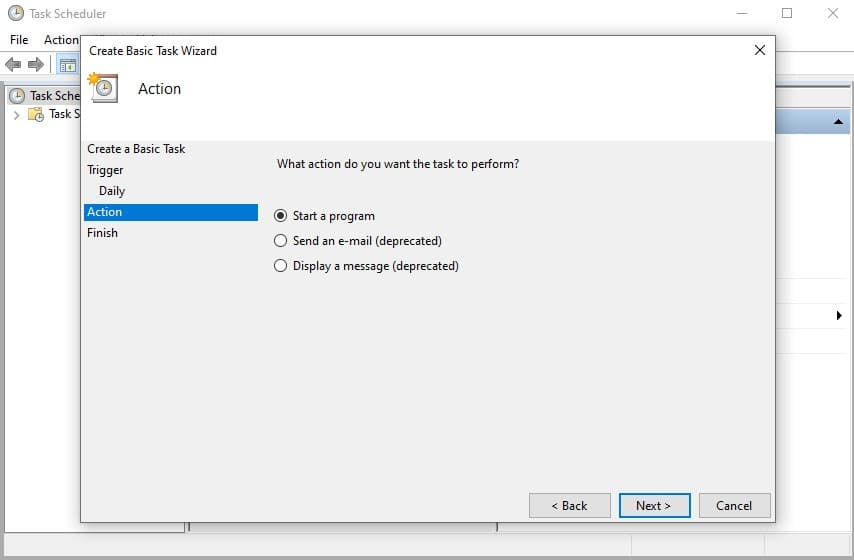
Selezionare Avvia un programma e fare clic su Avanti.
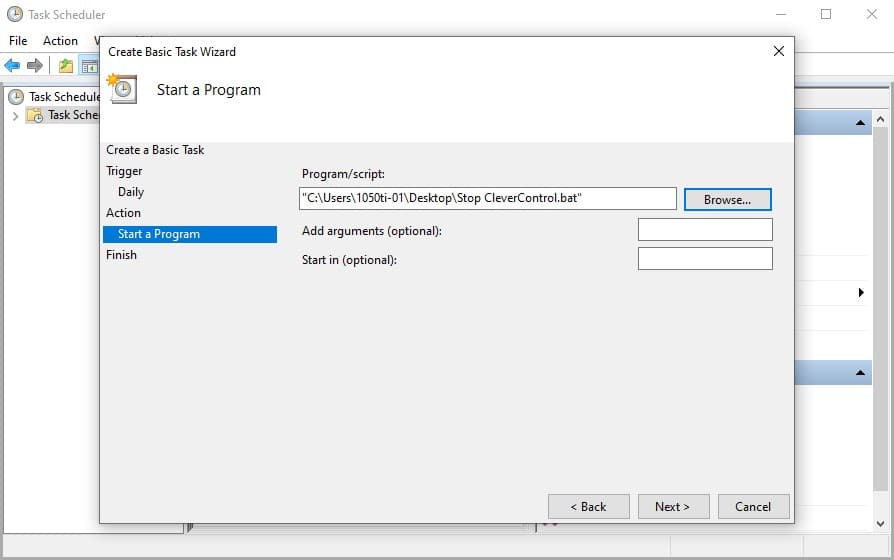
Fate clic su Browse e trovate il file "Stop CleverControl.bat" appena creato e salvato. Fare clic su Avanti.
Fare clic su Finisci.
Il riconoscimento dei volti non è incluso nell'abbonamento di base. Per iniziare a utilizzarlo, è necessario acquistare l'aggiunta Registrazione webcam. Se lo si possiede già, è necessario aggiornare il programma sui computer monitorati alla versione più recente.
Seguire quindi la seguente procedura per attivare il riconoscimento dei volti:
1) Accedere alla dashboard online > Account > Computer e assicurarsi che la registrazione della webcam sia attivata.
2) Fare clic sul pulsante Imposta computer sotto il nome del computer.
3) Andare alla scheda Media e scorrere fino alla sezione Riconoscimento viso. Attivare l'opzione Riconoscimento viso e selezionare la webcam nel menu a discesa. Tutto pronto!
In seguito, è possibile trovare il rapporto nella scheda Riconoscimento viso della dashboard.
La licenza a vita include tutte le funzioni di base di CleverControl: screenshot, monitoraggio dei siti web visitati, monitoraggio delle attività della stampante, ecc. Inoltre, avrete accesso a tutte le funzioni aggiuntive: Registrazione dello schermo, Registrazione della webcam + riconoscimento del volto e Registrazione delle chiamate.
Sì, sono disponibili con una licenza a vita.
No. La licenza a vita è disponibile solo per CleverControl On-Premise.
Tutti gli aggiornamenti di versione avviati da CleverControl sono gratuiti per sempre.
No, il supporto tecnico è gratuito per sempre. È possibile contattare il nostro team di assistenza per qualsiasi domanda sul prodotto 24 ore su 24, 7 giorni su 7, all'indirizzo support'@'clevercontrol.com.